> ## Documentation Index
> Fetch the complete documentation index at: https://docs.archetypeai.app/llms.txt
> Use this file to discover all available pages before exploring further.
> ## Agent Instructions
> Start with /introduction/getting-started. Use the Direct Query API (POST /query) with the Newton Fusion model (text, image, and video reasoning) or the Newton Omega encoder (time-series embeddings). ATAI_API_ENDPOINT must include the version path: /v0.5 for most APIs, /v0.6 for the Fine-Tuning Service. Pages whose descriptions are marked (Archived) document the legacy Lens runtime — do not use them for new projects.
# Agent Manager
> View and run agents available to your organization.
To view the agents available to your organization, click the **Agent Manager** option in the
Developer Console sidebar. The Agent Manager offers two views: a card view and a list view.
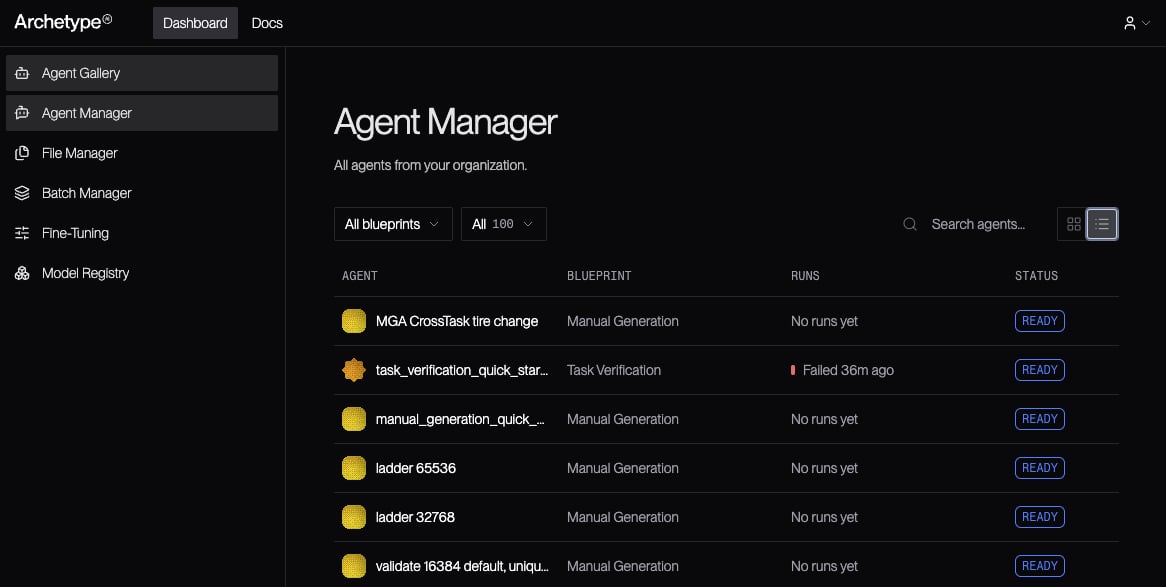 The columns shown in the list are:
* **Agent**: The human-readable agent name specified when the agent was created.
* **Blueprint**: The agent blueprint on which the agent is based (e.g., Manual Generation or
Task Validation).
* **Runs**: How long ago the last run was, or "No runs yet" if the agent hasn't been run yet.
* **Status**: The status of the agent (`BUILDING` or `READY`).
Both the list view and the card view let you filter the agent list based on which blueprint was
used to create the agent, and you can search for agents matching a given string.
## Running an Agent
To run an agent from the Developer Console, visit the [Agent
Manager](https://console.u1.archetypeai.app/dashboard/agent-manager) and locate the agent you
want to run. Click on it to open the agent:
The columns shown in the list are:
* **Agent**: The human-readable agent name specified when the agent was created.
* **Blueprint**: The agent blueprint on which the agent is based (e.g., Manual Generation or
Task Validation).
* **Runs**: How long ago the last run was, or "No runs yet" if the agent hasn't been run yet.
* **Status**: The status of the agent (`BUILDING` or `READY`).
Both the list view and the card view let you filter the agent list based on which blueprint was
used to create the agent, and you can search for agents matching a given string.
## Running an Agent
To run an agent from the Developer Console, visit the [Agent
Manager](https://console.u1.archetypeai.app/dashboard/agent-manager) and locate the agent you
want to run. Click on it to open the agent:
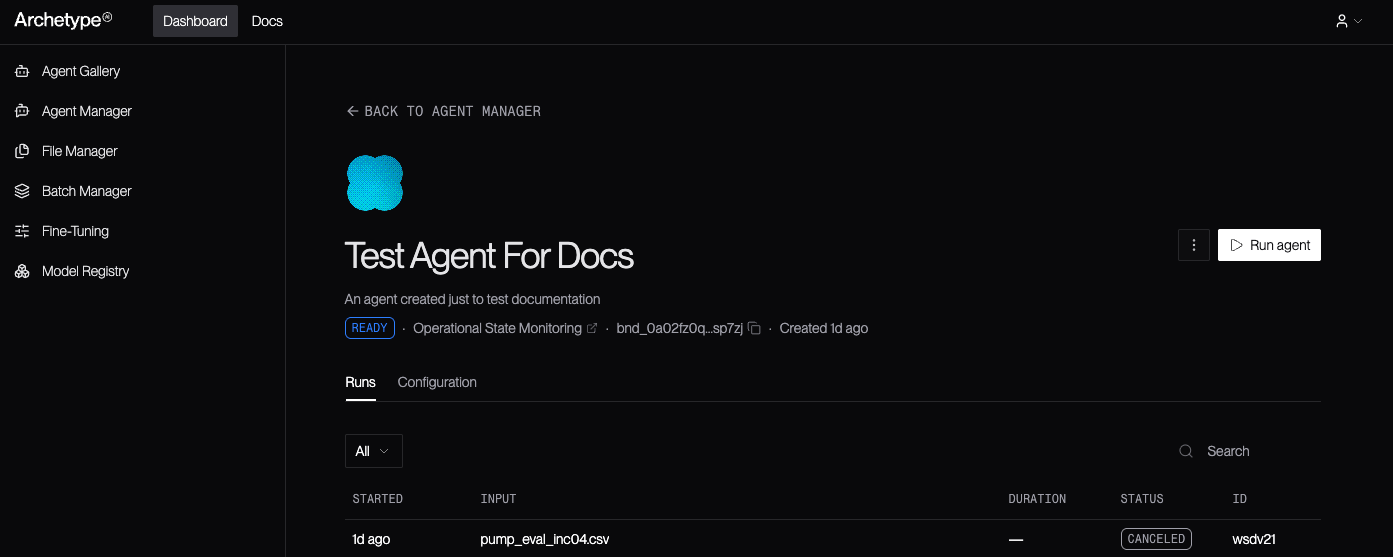 Click the ** Run Agent** button at the top-right corner of the
agent page to begin the process of running the agent. This opens up a modal letting you
configure the agent's inputs:
Click the ** Run Agent** button at the top-right corner of the
agent page to begin the process of running the agent. This opens up a modal letting you
configure the agent's inputs:
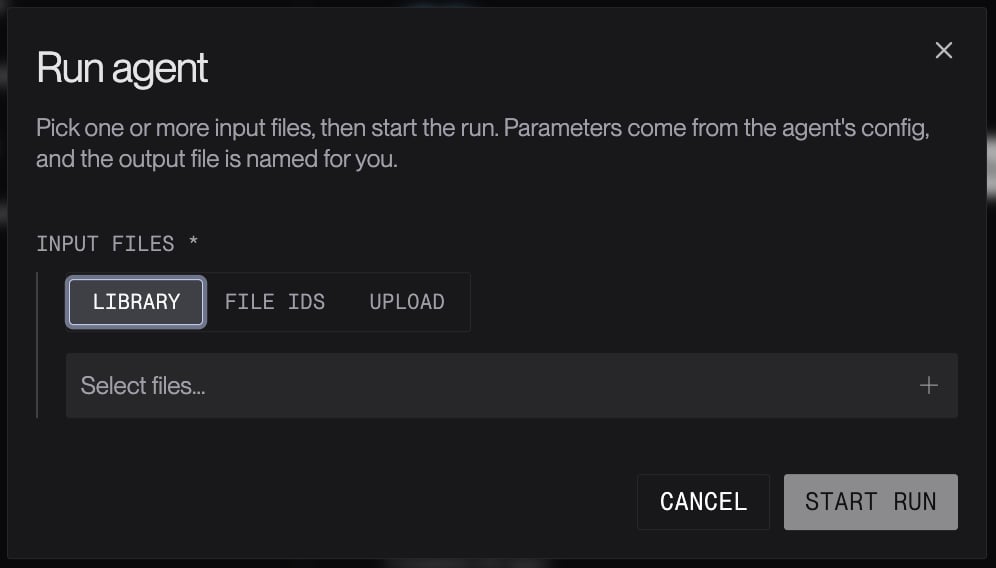 From here, select or upload your input files just like you do when setting up any batch
processing job. This takes you to the running agent details page, where you can monitor and
manage your agent run.
## Monitoring and Managing Agent Runs
To monitor and manage agent runs, start by opening the agent page for the agent whose runs you
want to manage.
### The Runs list
At the bottom, in the **Runs** tab, is a list of the runs of the agent that are available to
manage.
From here, select or upload your input files just like you do when setting up any batch
processing job. This takes you to the running agent details page, where you can monitor and
manage your agent run.
## Monitoring and Managing Agent Runs
To monitor and manage agent runs, start by opening the agent page for the agent whose runs you
want to manage.
### The Runs list
At the bottom, in the **Runs** tab, is a list of the runs of the agent that are available to
manage.
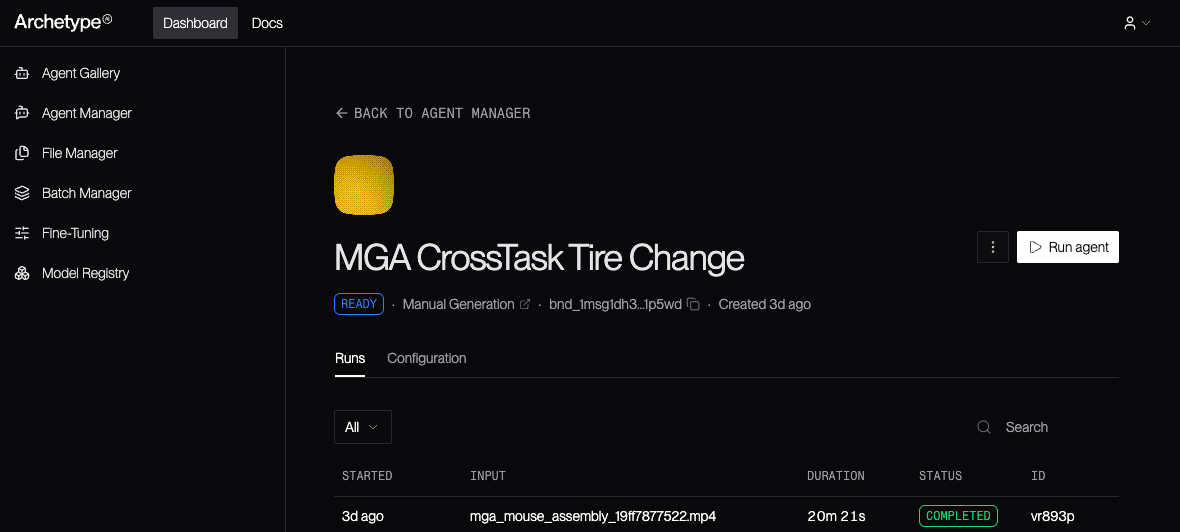 The list shows, for each agent run:
* When the agent run was started.
* The input file(s).
* The agent run's duration; this is the total amount of time that run lasted for completed runs,
and the time to date for ongoing agent runs.
* The agent run's status.
* The agent run's unique ID.
Click on an agent run in the **Runs** list to open that run's [details page](#the-agent-run-details-page).
### The Configuration
The **Configuration** tab displays the values of the parameters configured for the agent run,
with separate listings for the parameters that are customized for this run of the agent and the
parameters that are using the blueprint's default values.
## Deleting an Agent
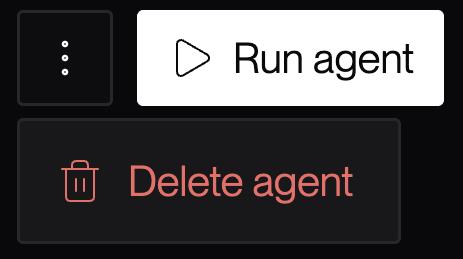
To delete an agent from the Developer Console, open the agent page and click the button to the
left of the ** Run Agent** button. This opens a popup which
includes the ** Delete agent** button.
The list shows, for each agent run:
* When the agent run was started.
* The input file(s).
* The agent run's duration; this is the total amount of time that run lasted for completed runs,
and the time to date for ongoing agent runs.
* The agent run's status.
* The agent run's unique ID.
Click on an agent run in the **Runs** list to open that run's [details page](#the-agent-run-details-page).
### The Configuration
The **Configuration** tab displays the values of the parameters configured for the agent run,
with separate listings for the parameters that are customized for this run of the agent and the
parameters that are using the blueprint's default values.
## Deleting an Agent
To delete an agent from the Developer Console, open the agent page and click the button to the
left of the ** Run Agent** button. This opens a popup which
includes the ** Delete agent** button.
 Clicking the ** Delete agent** button pops up a modal
confirming that you wish to delete the agent:
Clicking the ** Delete agent** button pops up a modal
confirming that you wish to delete the agent:
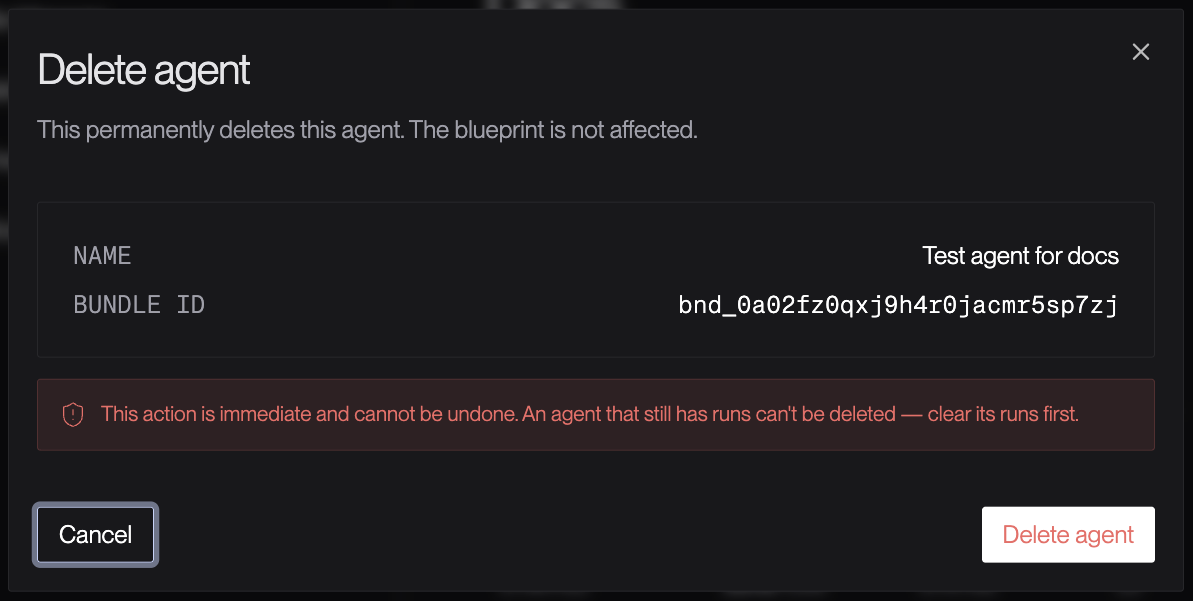 Review the information about the agent you're about to delete, including its name and bundle ID.
Make sure it's the agent you intend to delete, since deletion is an irreversible action.
You can only delete agents that have no runs in progress. If your agent is running, cancel
all of its runs before deleting it.
Once you're certain you wish to delete the agent, click the **Delete agent** button. If you
decide not to delete the agent, click **Cancel** instead.
Deleting an agent does not have any effect on the agent blueprint on which the agent is
based.
## The Agent Run Details Page
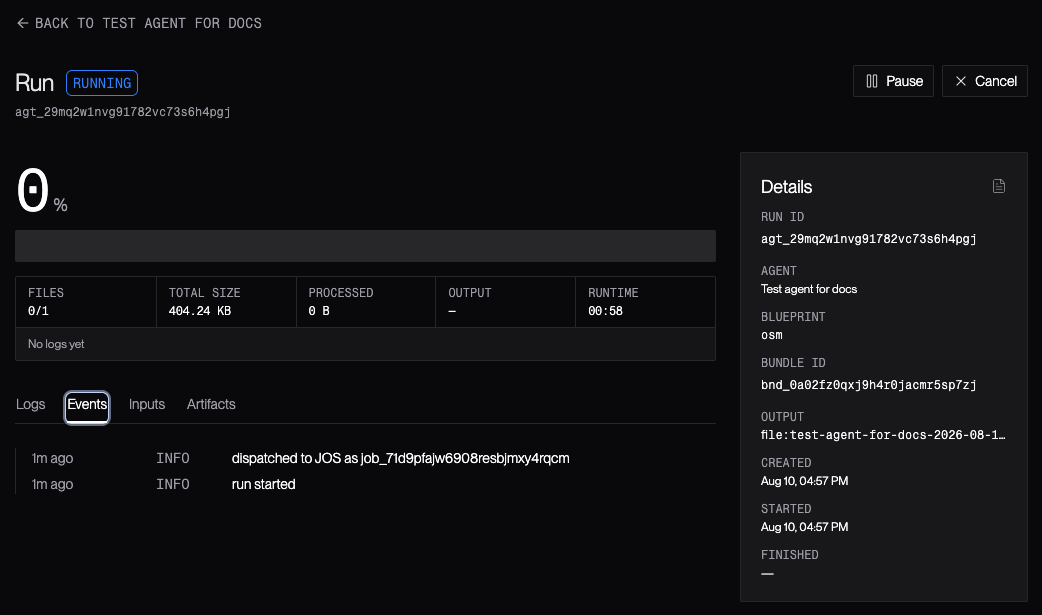
The **Run** details page displays details about an agent run. For running agents, the page
includes **Pause** and **Cancel** buttons:
Review the information about the agent you're about to delete, including its name and bundle ID.
Make sure it's the agent you intend to delete, since deletion is an irreversible action.
You can only delete agents that have no runs in progress. If your agent is running, cancel
all of its runs before deleting it.
Once you're certain you wish to delete the agent, click the **Delete agent** button. If you
decide not to delete the agent, click **Cancel** instead.
Deleting an agent does not have any effect on the agent blueprint on which the agent is
based.
## The Agent Run Details Page
The **Run** details page displays details about an agent run. For running agents, the page
includes **Pause** and **Cancel** buttons:
 If the agent run has completed, the **Pause** and **Cancel** buttons aren't displayed:
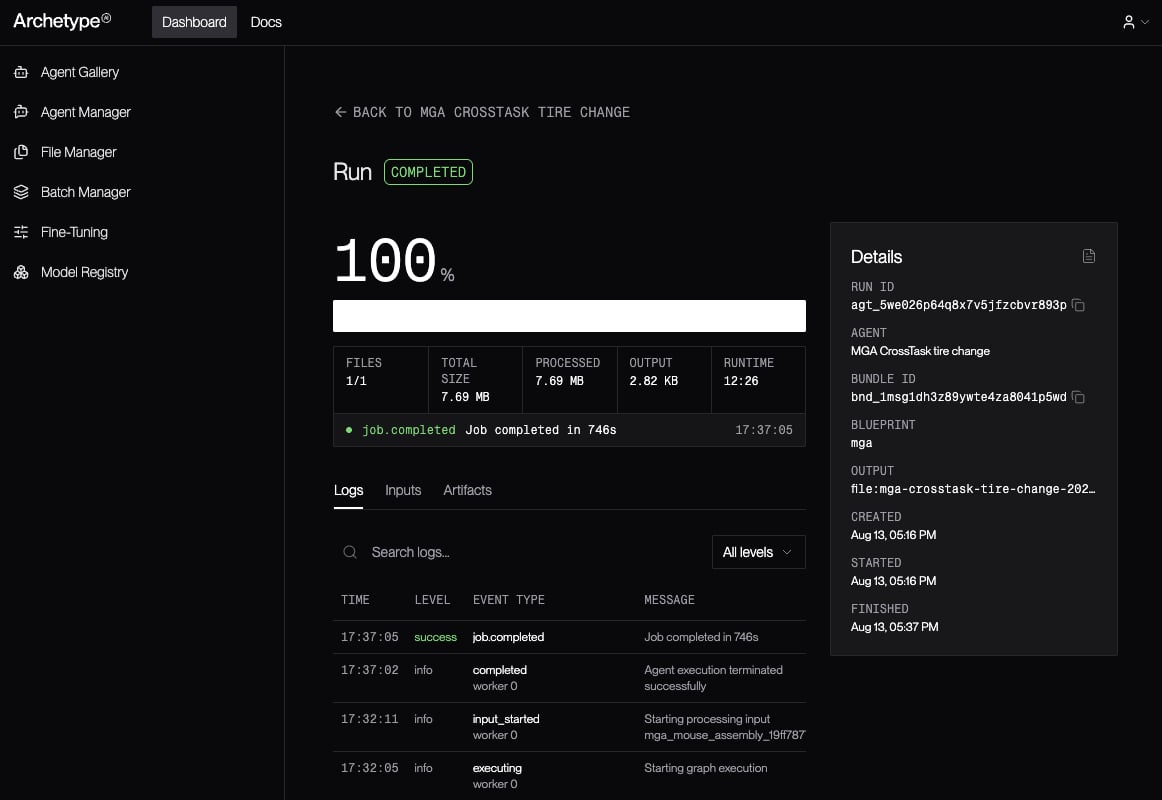 In both cases, the left side of the page displays details about the run's progress:
* The percentage of the agent run that has been completed, both numerically and as a progress
bar.
* A box including the number of files to be processed, the total size in bytes of the data to be
processed, how much data has already been processed, and the most recent log output line.
* A tab panel which lets you toggle between viewing:
* The agent run's log entries.
* A list of the input files specified when the run was started.
* A list of the artifacts (output files) generated by the agent run.
The right side of the page shows details about the agent run overall:
* The run's unique ID, starting with `agt_`.
* The agent's name.
* The agent's bundle ID, starting with `bnd_`.
* The agent blueprint on which the agent is based.
* The path of the output file.
* The date and time at which the agent run was created.
* The date and time at which the agent run was started.
* The date and time at which the agent run ended.
In both cases, the left side of the page displays details about the run's progress:
* The percentage of the agent run that has been completed, both numerically and as a progress
bar.
* A box including the number of files to be processed, the total size in bytes of the data to be
processed, how much data has already been processed, and the most recent log output line.
* A tab panel which lets you toggle between viewing:
* The agent run's log entries.
* A list of the input files specified when the run was started.
* A list of the artifacts (output files) generated by the agent run.
The right side of the page shows details about the agent run overall:
* The run's unique ID, starting with `agt_`.
* The agent's name.
* The agent's bundle ID, starting with `bnd_`.
* The agent blueprint on which the agent is based.
* The path of the output file.
* The date and time at which the agent run was created.
* The date and time at which the agent run was started.
* The date and time at which the agent run ended.