> ## Documentation Index
> Fetch the complete documentation index at: https://docs.archetypeai.app/llms.txt
> Use this file to discover all available pages before exploring further.
# Getting Started
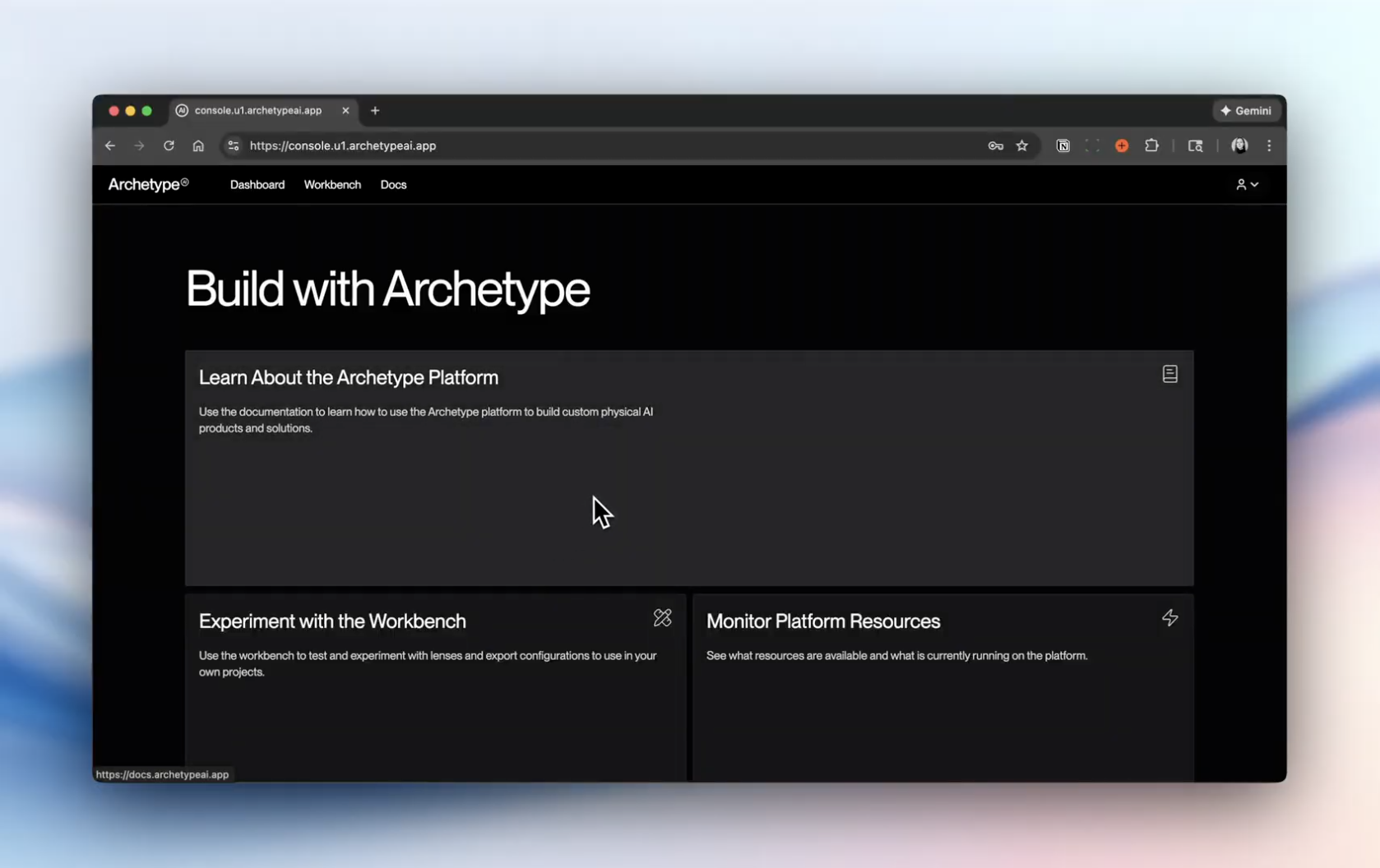
The [Developer Console](https://console.u1.archetypeai.app/) is the front-end interface to the Archetype platform. It allows you to quickly use our lenses with your own data in a no-code environment (workbench), manage your files, and access documentation.
 ## What You Can Do in the Developer Console
### 1. Test Lenses in the Workbench
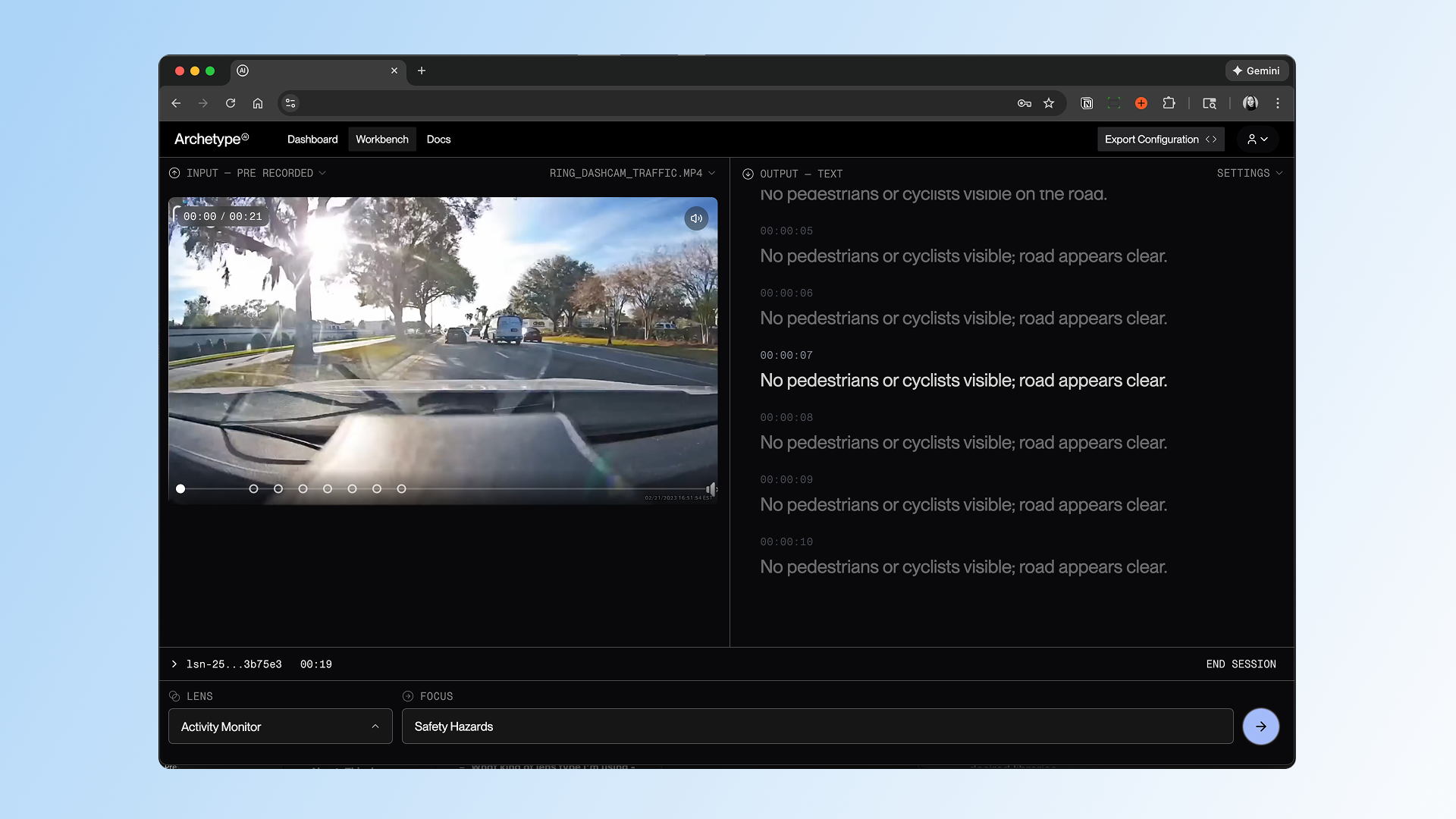
The [Workbench](https://console.u1.archetypeai.app/workbench) is a no-code interface for testing Lenses with your own data. Using the workbench is easy for both developers and non-developers involves the following steps:
1. **Select your lens**
2. **Upload your own sample data** (or try our [sample files](https://drive.google.com/drive/folders/1iAT42EUpCEMj_sFvHvRAtJBTqSF_Jn-u?usp=drive_link) to get started quickly)
3. **Modify the lens parameters**
4. **Run a Session & View the output**
Learn step by step on how to use the workbench with the [Activity Monitor Lens](https://docs.archetypeai.app/developer-console/workbench/activity) and [Machine State Lens](https://docs.archetypeai.app/developer-console/workbench/machine-state).
## What You Can Do in the Developer Console
### 1. Test Lenses in the Workbench
The [Workbench](https://console.u1.archetypeai.app/workbench) is a no-code interface for testing Lenses with your own data. Using the workbench is easy for both developers and non-developers involves the following steps:
1. **Select your lens**
2. **Upload your own sample data** (or try our [sample files](https://drive.google.com/drive/folders/1iAT42EUpCEMj_sFvHvRAtJBTqSF_Jn-u?usp=drive_link) to get started quickly)
3. **Modify the lens parameters**
4. **Run a Session & View the output**
Learn step by step on how to use the workbench with the [Activity Monitor Lens](https://docs.archetypeai.app/developer-console/workbench/activity) and [Machine State Lens](https://docs.archetypeai.app/developer-console/workbench/machine-state).
 Lenses created programmatically (via [Python
client](https://docs.archetypeai.app/libraries/python) or [API](https://docs.archetypeai.app/api-reference/introduction)) will automatically appear in your Developer Console, allowing you to monitor sessions, view results, and manage configurations from the interface. Learn more in the [quickstart
guide](https://docs.archetypeai.app/introduction/getting-started).
### 2. Manage Resources
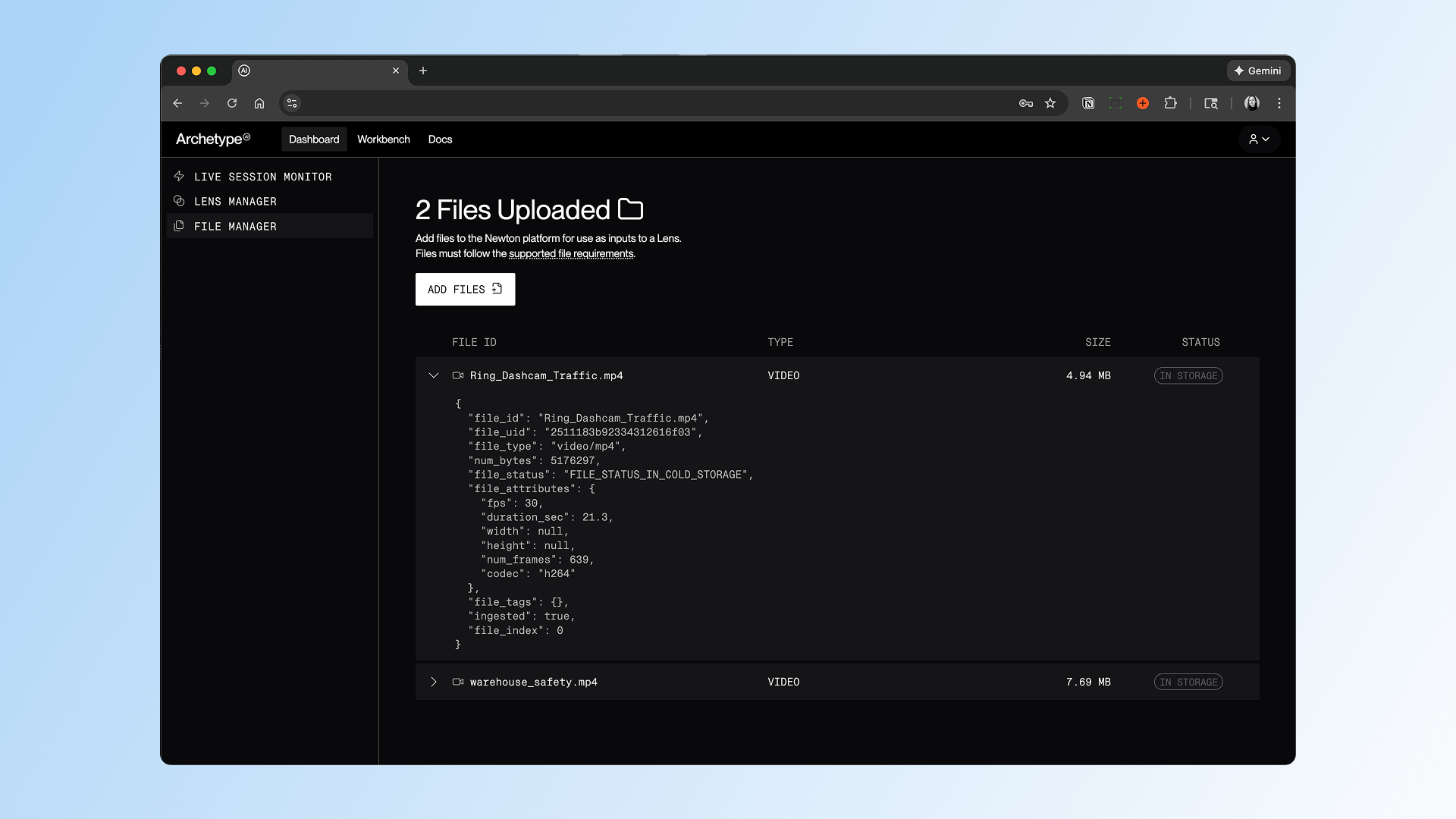
The console dashboard provides a [File Manager](https://console.u1.archetypeai.app/dashboard/files) to:
* Upload files that can be accessed via API key
* View and delete files at any time
These controls ensure that data and artifacts remain isolated to your API key.
Lenses created programmatically (via [Python
client](https://docs.archetypeai.app/libraries/python) or [API](https://docs.archetypeai.app/api-reference/introduction)) will automatically appear in your Developer Console, allowing you to monitor sessions, view results, and manage configurations from the interface. Learn more in the [quickstart
guide](https://docs.archetypeai.app/introduction/getting-started).
### 2. Manage Resources
The console dashboard provides a [File Manager](https://console.u1.archetypeai.app/dashboard/files) to:
* Upload files that can be accessed via API key
* View and delete files at any time
These controls ensure that data and artifacts remain isolated to your API key.
 ### 3. Monitor Lenses and Sessions
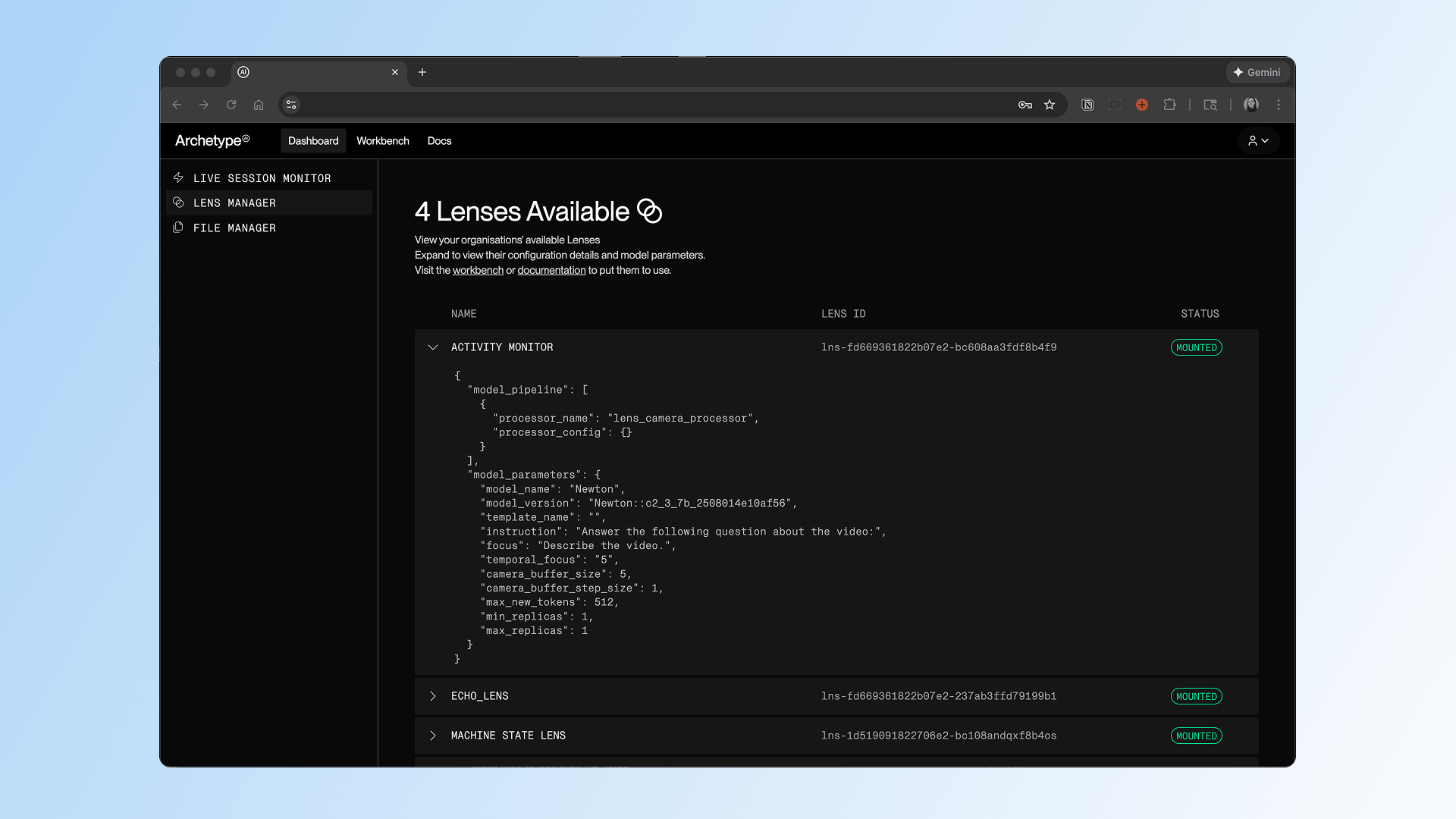
The console dashboard gives you visibility into the lenses and [sessions](https://console.u1.archetypeai.app/dashboard/monitor) that are running:
* Lenses in use, including their lens ID and lens metadata
* Active sessions and their duration
This helps you track system usage and debug issues.
### 3. Monitor Lenses and Sessions
The console dashboard gives you visibility into the lenses and [sessions](https://console.u1.archetypeai.app/dashboard/monitor) that are running:
* Lenses in use, including their lens ID and lens metadata
* Active sessions and their duration
This helps you track system usage and debug issues.
 ### 4. Create and Manage Batch Processing jobs
The console dashboard includes the **Batch Manager**, which lets you create, manage, and monitor batch processing jobs. Batch processing lets
you run a job against multiple files at once. Configure the job, select the files against which to run the job, and run the job. You can then
watch the status of the job, or let the job run and check the results later.
### 5. Explore Documentation
The console provides a link to the developer docs where you can:
* Learn about [core concepts](https://docs.archetypeai.app/core-concepts/introduction/introduction) of the Archetype platform
* Try the [Quickstart](https://docs.archetypeai.app/introduction/getting-started) and [example tutorials](https://docs.archetypeai.app/code-examples/)
* View [API references](https://docs.archetypeai.app/api-reference/introduction) for integrating APIs into your prototypes and applications
## Access Requirements
* Active Archetype platform API key - [Sign in here](https://console.u1.archetypeai.app/)
The Workbench is continuously evolving. New lens types and capabilities are added regularly based on user feedback and platform improvements.
### 4. Create and Manage Batch Processing jobs
The console dashboard includes the **Batch Manager**, which lets you create, manage, and monitor batch processing jobs. Batch processing lets
you run a job against multiple files at once. Configure the job, select the files against which to run the job, and run the job. You can then
watch the status of the job, or let the job run and check the results later.
### 5. Explore Documentation
The console provides a link to the developer docs where you can:
* Learn about [core concepts](https://docs.archetypeai.app/core-concepts/introduction/introduction) of the Archetype platform
* Try the [Quickstart](https://docs.archetypeai.app/introduction/getting-started) and [example tutorials](https://docs.archetypeai.app/code-examples/)
* View [API references](https://docs.archetypeai.app/api-reference/introduction) for integrating APIs into your prototypes and applications
## Access Requirements
* Active Archetype platform API key - [Sign in here](https://console.u1.archetypeai.app/)
The Workbench is continuously evolving. New lens types and capabilities are added regularly based on user feedback and platform improvements.