> ## Documentation Index
> Fetch the complete documentation index at: https://docs.archetypeai.app/llms.txt
> Use this file to discover all available pages before exploring further.
# Overview
The [Developer Console](https://console.u1.archetypeai.app/) is the front-end interface to the Archetype platform. It's where you create and manage API keys, manage your files, create and monitor batch processing jobs, fine-tune models, and access documentation.
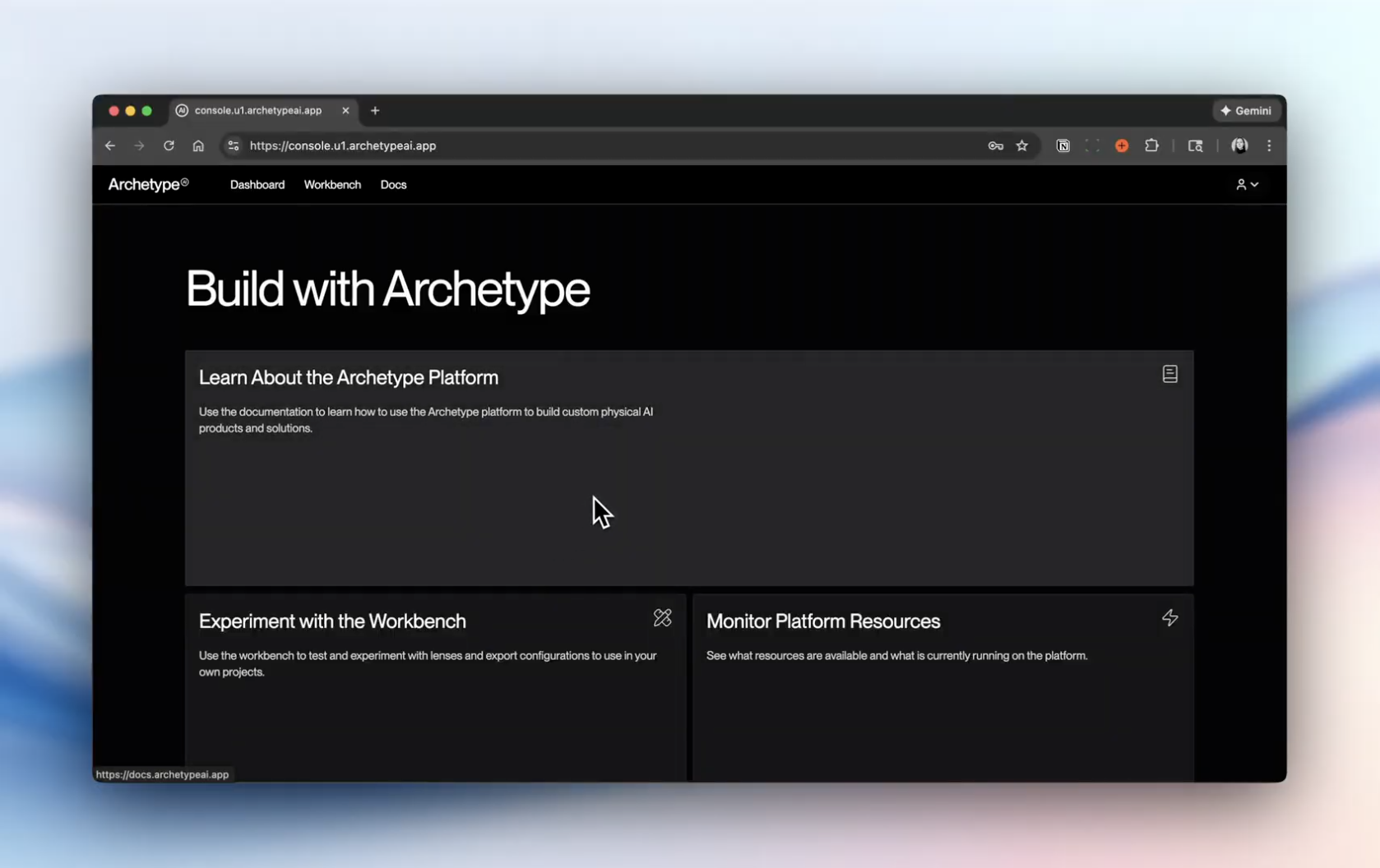 ## What You Can Do in the Developer Console
### 1. Create an API Key
Everything you build on the platform authenticates with an API key, and the Console is where you create one:
1. Sign in to the [Developer Console](https://console.u1.archetypeai.app/).
2. Go to **Profile → API Keys** ([console.u1.archetypeai.app/profile/api-keys](https://console.u1.archetypeai.app/profile/api-keys)) and create an API key.
3. Copy the **secret key** — this is the value your code sends as `ATAI_API_KEY`.
Treat the secret key like a password: store it in an environment variable or a `.env` file, never in source control. See [Environment Variables](/libraries/environment-variables) for setup details, then head to the [Developer Quickstart](/introduction/getting-started) to run your first queries with it.
Don't have Console access yet? [Request a free trial](https://forms.gle/yTu6xp7CCEvAYLqB9) to get started.
### 2. Manage Resources
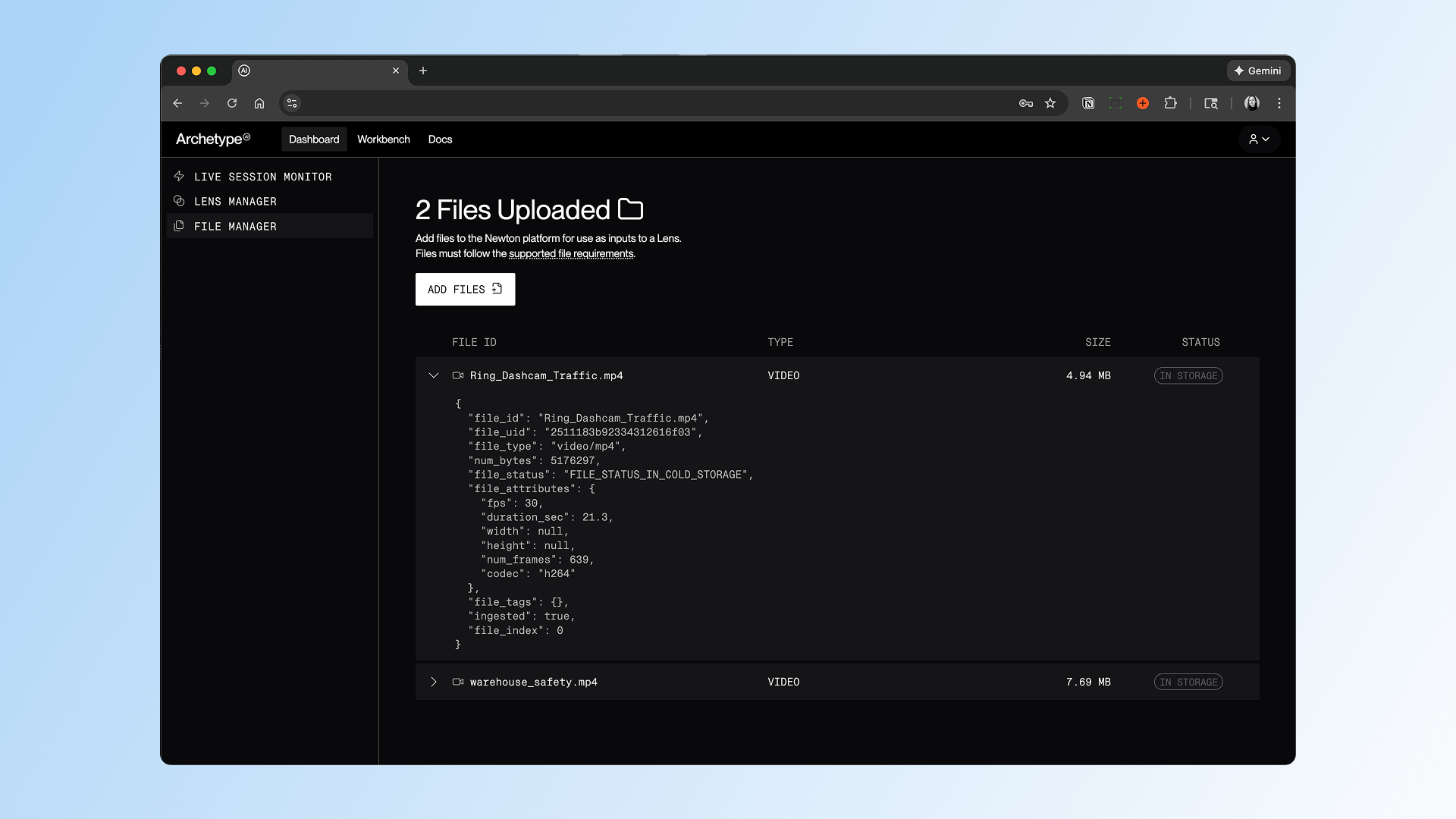
The console dashboard provides a [File Manager](https://console.u1.archetypeai.app/dashboard/files) to:
* Upload files that can be accessed via API key
* View and delete files at any time
These controls ensure that data and artifacts remain isolated to your API key.
## What You Can Do in the Developer Console
### 1. Create an API Key
Everything you build on the platform authenticates with an API key, and the Console is where you create one:
1. Sign in to the [Developer Console](https://console.u1.archetypeai.app/).
2. Go to **Profile → API Keys** ([console.u1.archetypeai.app/profile/api-keys](https://console.u1.archetypeai.app/profile/api-keys)) and create an API key.
3. Copy the **secret key** — this is the value your code sends as `ATAI_API_KEY`.
Treat the secret key like a password: store it in an environment variable or a `.env` file, never in source control. See [Environment Variables](/libraries/environment-variables) for setup details, then head to the [Developer Quickstart](/introduction/getting-started) to run your first queries with it.
Don't have Console access yet? [Request a free trial](https://forms.gle/yTu6xp7CCEvAYLqB9) to get started.
### 2. Manage Resources
The console dashboard provides a [File Manager](https://console.u1.archetypeai.app/dashboard/files) to:
* Upload files that can be accessed via API key
* View and delete files at any time
These controls ensure that data and artifacts remain isolated to your API key.
 ### 3. Create and Manage Batch Processing Jobs
The console dashboard includes the [Batch Manager](/developer-console/batch-manager), which lets you create, manage, and monitor batch processing jobs. Batch processing lets you run a job against multiple files at once. Configure the job, select the files against which to run the job, and run the job. You can then watch the status of the job, or let the job run and check the results later.
### 4. Fine-Tune Models
The Console's [Fine-Tuning dashboard](/developer-console/fine-tuning/fine-tuning) walks you through training a custom Newton checkpoint on your own data: upload training files, configure the job, monitor training progress and loss curves, and pick a checkpoint to query.
### 5. Explore Documentation
The console provides a link to the developer docs where you can:
* Learn about [core concepts](https://docs.archetypeai.app/core-concepts/introduction/introduction) of the Archetype platform
* Try the [Quickstart](https://docs.archetypeai.app/introduction/getting-started) and [example projects](https://docs.archetypeai.app/code-examples/example-projects)
* View [API references](https://docs.archetypeai.app/api-reference/introduction) for integrating APIs into your prototypes and applications
### 3. Create and Manage Batch Processing Jobs
The console dashboard includes the [Batch Manager](/developer-console/batch-manager), which lets you create, manage, and monitor batch processing jobs. Batch processing lets you run a job against multiple files at once. Configure the job, select the files against which to run the job, and run the job. You can then watch the status of the job, or let the job run and check the results later.
### 4. Fine-Tune Models
The Console's [Fine-Tuning dashboard](/developer-console/fine-tuning/fine-tuning) walks you through training a custom Newton checkpoint on your own data: upload training files, configure the job, monitor training progress and loss curves, and pick a checkpoint to query.
### 5. Explore Documentation
The console provides a link to the developer docs where you can:
* Learn about [core concepts](https://docs.archetypeai.app/core-concepts/introduction/introduction) of the Archetype platform
* Try the [Quickstart](https://docs.archetypeai.app/introduction/getting-started) and [example projects](https://docs.archetypeai.app/code-examples/example-projects)
* View [API references](https://docs.archetypeai.app/api-reference/introduction) for integrating APIs into your prototypes and applications