> ## Documentation Index
> Fetch the complete documentation index at: https://docs.archetypeai.app/llms.txt
> Use this file to discover all available pages before exploring further.
> ## Agent Instructions
> Start with /introduction/getting-started. Use the Direct Query API (POST /query) with the Newton Fusion model (text, image, and video reasoning) or the Newton Omega encoder (time-series embeddings). ATAI_API_ENDPOINT must include the version path: /v0.5 for most APIs, /v0.6 for the Fine-Tuning Service. Pages whose descriptions are marked (Archived) document the legacy Lens runtime — do not use them for new projects.
# Profile & API Keys
> View your account information and create and manage your API keys.
## Accessing Your Profile
To access your profile, open the user menu found at the top-right corner of the Archetype AI
Developer Console, and choose the **Profile & API Keys** option.
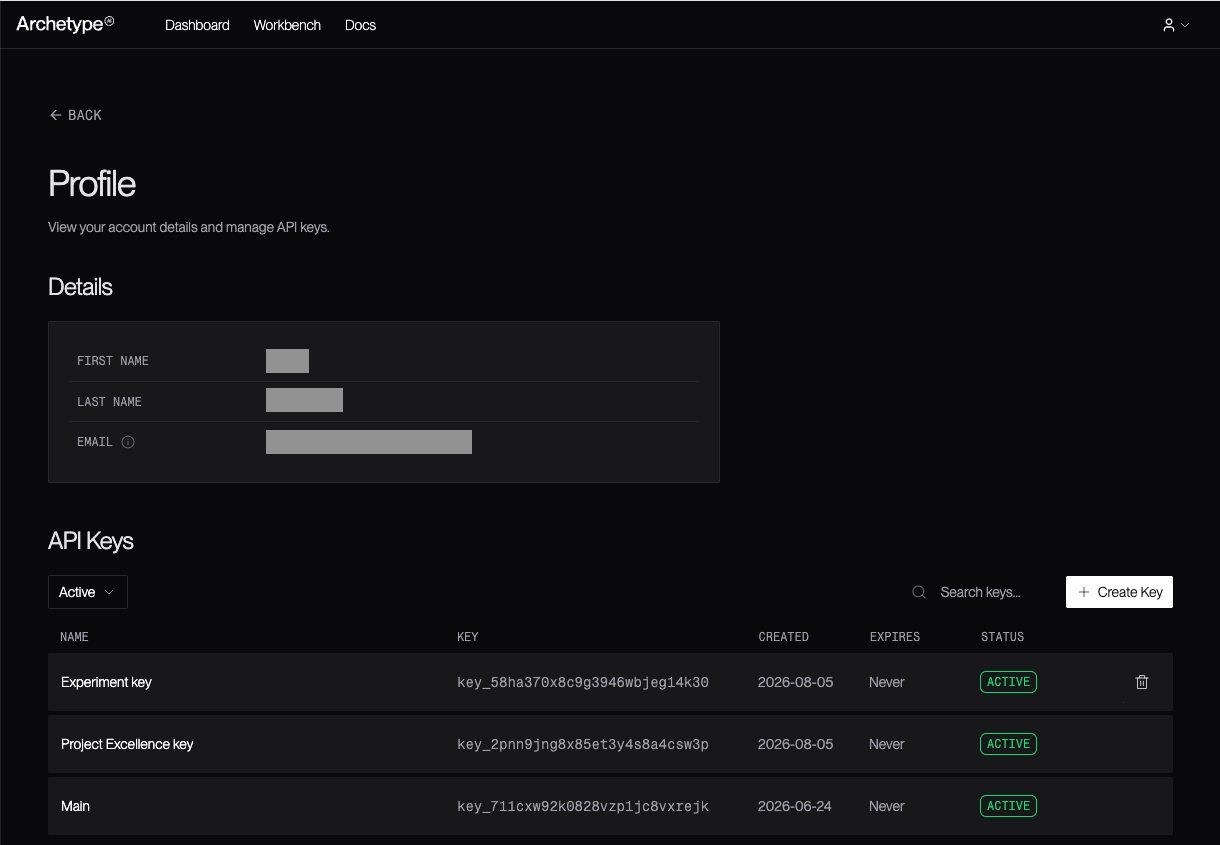
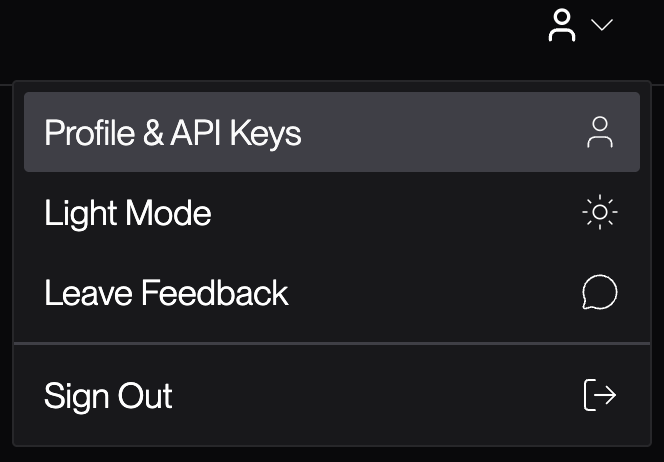 This opens your Profile page. The Profile page has two sections: **Details**, which lists
details about your user account, and **API Keys**, where you can view, filter, manage, and
search your existing API keys, as well as create new ones.
This opens your Profile page. The Profile page has two sections: **Details**, which lists
details about your user account, and **API Keys**, where you can view, filter, manage, and
search your existing API keys, as well as create new ones.
 ## Managing API Keys
### Creating an API Key
Everything you build on the Archetype Platform authenticates using an API key, and the Developer
Console is where you create them. To do so, start by signing in to the **[Developer
Console](https://console.u1.archetypeai.app/)**, then open the **[Profile & API
Keys](https://console.u1.archetypeai.app/profile/api-keys)** page using the user menu at the
top-right corner of the window.
Don't have Developer Console access yet? [Request a free
trial](https://forms.gle/yTu6xp7CCEvAYLqB9) to get started.
1. Click the **+ Create Key** button at the top-right corner of the **API Keys** section of the
page. This opens the **Create API Key** panel:
## Managing API Keys
### Creating an API Key
Everything you build on the Archetype Platform authenticates using an API key, and the Developer
Console is where you create them. To do so, start by signing in to the **[Developer
Console](https://console.u1.archetypeai.app/)**, then open the **[Profile & API
Keys](https://console.u1.archetypeai.app/profile/api-keys)** page using the user menu at the
top-right corner of the window.
Don't have Developer Console access yet? [Request a free
trial](https://forms.gle/yTu6xp7CCEvAYLqB9) to get started.
1. Click the **+ Create Key** button at the top-right corner of the **API Keys** section of the
page. This opens the **Create API Key** panel:  2. Enter a name for your new API key and click the **Create Key** button to create the new API
key. A new modal will appear showing you information about the new API key:
2. Enter a name for your new API key and click the **Create Key** button to create the new API
key. A new modal will appear showing you information about the new API key:  3. Copy the **secret key**, which starts with `sk_`. This is the value your code sends as
**`ATAI_API_KEY`**. Treat the secret key like a password: store it in an environment variable or
a `.env` file, never in source control. See [Environment
Variables](/libraries/environment-variables) for setup details, then head to the [Developer
Quickstart](/introduction/getting-started) to run your first queries using your new API key.
### Revoking an API Key
If you are no longer using a particular API key, you should revoke it so that it can no longer
be used to access your account and its data. To revoke an API key, mouse over the API key you
want to revoke. This causes a revoke button () to appear at the
right-hand side of the API key's row in the list. Click the revoke button to open the **Revoke
API Key** panel:
3. Copy the **secret key**, which starts with `sk_`. This is the value your code sends as
**`ATAI_API_KEY`**. Treat the secret key like a password: store it in an environment variable or
a `.env` file, never in source control. See [Environment
Variables](/libraries/environment-variables) for setup details, then head to the [Developer
Quickstart](/introduction/getting-started) to run your first queries using your new API key.
### Revoking an API Key
If you are no longer using a particular API key, you should revoke it so that it can no longer
be used to access your account and its data. To revoke an API key, mouse over the API key you
want to revoke. This causes a revoke button () to appear at the
right-hand side of the API key's row in the list. Click the revoke button to open the **Revoke
API Key** panel:
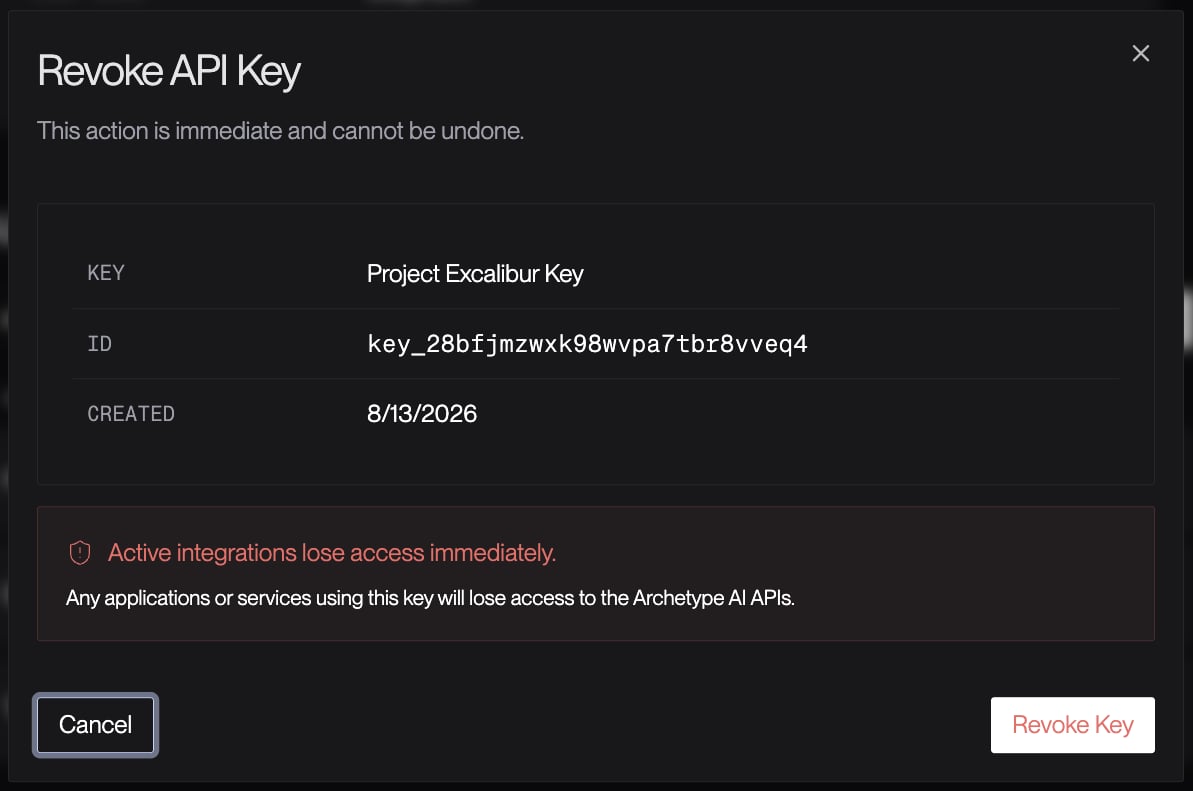 Review the displayed information about the API key. If you're *certain* you want to revoke the
API key, click the **Revoke Key** button.
Once you revoke an API key, all applications and services configured using that key
immediately lose access to all Archetype AI APIs.
### Filtering API Keys By Status
To filter the list of your API keys to show only those whose status (Active, Revoked, Expired,
etc.) matches a given value, use the popup located immediately below the **API Keys** heading:
Review the displayed information about the API key. If you're *certain* you want to revoke the
API key, click the **Revoke Key** button.
Once you revoke an API key, all applications and services configured using that key
immediately lose access to all Archetype AI APIs.
### Filtering API Keys By Status
To filter the list of your API keys to show only those whose status (Active, Revoked, Expired,
etc.) matches a given value, use the popup located immediately below the **API Keys** heading:
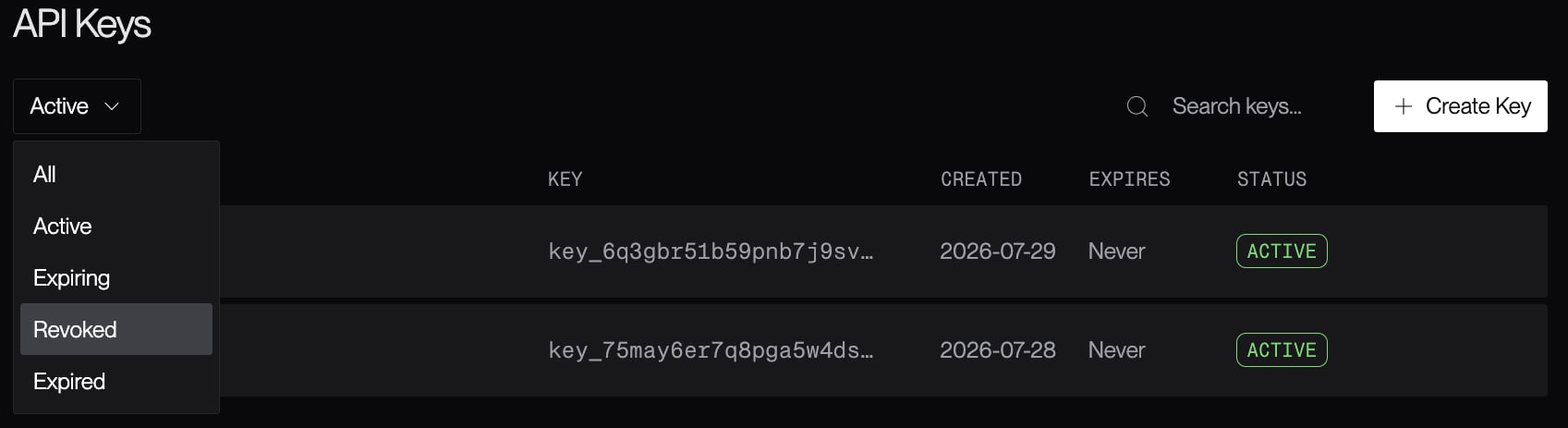 In this example, the **Revoked** filter is highlighted. This will restrict the API key list to
show only those keys which have been revoked.
In this example, the **Revoked** filter is highlighted. This will restrict the API key list to
show only those keys which have been revoked.