> ## Documentation Index
> Fetch the complete documentation index at: https://docs.archetypeai.app/llms.txt
> Use this file to discover all available pages before exploring further.
# Activity Monitor Lens
> Learn how to use the Activity Monitor lens with video files in the workbench.
The **Activity Monitor Lens** analyzes camera data to identify the activities, movements, or events occurring within a scene. Use the [Activity Monitor lens](/core-concepts/lenses/lens-templates/activity-monitor) to analyze objects, activities, and concepts through video data.
While the APIs work with both pre-recorded and live videos, the workbench only works with pre-recorded video files.
## 1. Access the Workbench
Use your API key and log into the [Console](https://console.u1.archetypeai.app/workbench). Click on "Workbench" in the navigation bar.
Make sure you have an active API key for the Archetype platform, and you're able to log in to the console. If you have any problems, please contact [support@archetypeai.dev](mailto:support@archetypeai.dev).
## 2. Select a Lens
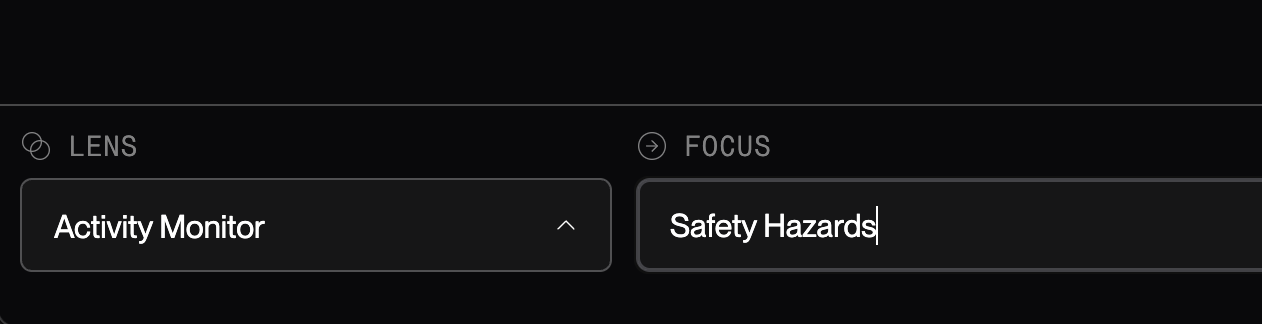
In the Workbench, the Lens name appears at the bottom of the screen. Click the name to open a tray showing all lenses available to your organization.
Select the lens named "Activity Monitor" from the lens tray.
## 3. Upload Your Video
The Workbench works with pre-recorded .mp4 video files for analysis.
Download our sample dashcam video to follow along: [Ring\_Dashcam\_Traffic.mp4](https://drive.google.com/file/d/142EXjAriJq7_WVZlTVzvhVTv8aB8q_UQ/view?usp=drive_link). Or upload your own video file using the file selection in the top right of the input panel.
Only MP4 video files under 255MB are currently supported. Other formats will not work.
## 4. Set Your Focus and Instructions
Configure how the Activity Monitor lens analyzes your video by setting focus and providing custom instructions.
In the instructions field, copy and paste these instructions for the Ring video analysis:
```
You are an intelligent dashcam attached to the front of a car, looking for safety hazards
to keep your driver safe. This includes reckless driving and debris in the road such as
car parts. ONLY when you see something hazardous or unsafe, respond with a notification
in the following format {Alert: Description of safety hazard}. Do not include brackets
in your message. Respond in less than 8 words.
```
You can also customize the Instructions to fit your use case—for example, by asking Newton to focus on specific aspects or answer targeted questions. For details on advanced parameters, see the [**Activity Monitor Lens**](https://docs.archetypeai.app/core-concepts/lenses/lens-templates/activity-monitor) section in Core Concepts.
Type your focus in the bottom input bar. **Focus** is a runtime control that allows you to narrow analysis to specific behaviors or conditions.
For the Ring\_Dashcam\_Traffic video, try the focus of **"safety hazards".**
 Temporal focus is a parameter in the workbench that controls frame sampling across time windows.
**Change the temporal focus from 5 to 1**, which is the window in seconds for analysis. This determines how frequently the lens samples frames from your video for analysis.
Temporal focus is a parameter in the workbench that controls frame sampling across time windows.
**Change the temporal focus from 5 to 1**, which is the window in seconds for analysis. This determines how frequently the lens samples frames from your video for analysis.
 ## 5. Start Your Session and View Results
Begin the analysis by clicking the arrow button in the bottom right of the screen to start the session. The session will begin processing your video with the selected lens and focus.
Once the session is running, you'll be able to see output from the lens within the output panel. Click a message to view its corresponding video segment. A pill expands with a looping playhead. Click the video to close the pill and return to the main view. The output text will look something like this:
```text Example Output theme={"system"}
[00:00:06] No visible hazards detected. Safe driving ahead.
[00:00:07] No visible hazards detected at this moment.
[00:00:08] Alert: Tire on road ahead.
```
## Access Developer Logs (Optional)
For debugging and detailed analysis, you can view the log panel above the focus bar.
## 5. Start Your Session and View Results
Begin the analysis by clicking the arrow button in the bottom right of the screen to start the session. The session will begin processing your video with the selected lens and focus.
Once the session is running, you'll be able to see output from the lens within the output panel. Click a message to view its corresponding video segment. A pill expands with a looping playhead. Click the video to close the pill and return to the main view. The output text will look something like this:
```text Example Output theme={"system"}
[00:00:06] No visible hazards detected. Safe driving ahead.
[00:00:07] No visible hazards detected at this moment.
[00:00:08] Alert: Tire on road ahead.
```
## Access Developer Logs (Optional)
For debugging and detailed analysis, you can view the log panel above the focus bar.
 Congratulations! You've successfully run your first Workbench session without writing any code.
## Optional: Try Variations
Using the same video (or a [starter video](https://drive.google.com/drive/folders/1iAT42EUpCEMj_sFvHvRAtJBTqSF_Jn-u?usp=drive_link)), experiment with how Lens parameters affect the output:
* **Change Focus** to `Vehicles` and observe the difference.
* **Edit Instructions** using the template below and see how behavior and output change (*A prompt best practices section is coming soon)*:
```
Role:
You are a smart camera monitoring a conveyor belt in a manufacturing facility.
Objective:
Detect complete work stoppages that require human intervention.
Output:
Return alerts in the following format:
ALERT:
```
* **Adjust Temporal Focus** to `2` or `20` to compare shorter vs. longer time windows.
Learn more in the [**Activity Monitor Lens**](https://docs.archetypeai.app/core-concepts/lenses/lens-templates/activity-monitor) section of Core Concepts.
## Learn More
Try a quickstart tutorial in the terminal to get started with video.
Ready to integrate Newton into your application? Explore the Lens API documentation
Congratulations! You've successfully run your first Workbench session without writing any code.
## Optional: Try Variations
Using the same video (or a [starter video](https://drive.google.com/drive/folders/1iAT42EUpCEMj_sFvHvRAtJBTqSF_Jn-u?usp=drive_link)), experiment with how Lens parameters affect the output:
* **Change Focus** to `Vehicles` and observe the difference.
* **Edit Instructions** using the template below and see how behavior and output change (*A prompt best practices section is coming soon)*:
```
Role:
You are a smart camera monitoring a conveyor belt in a manufacturing facility.
Objective:
Detect complete work stoppages that require human intervention.
Output:
Return alerts in the following format:
ALERT:
```
* **Adjust Temporal Focus** to `2` or `20` to compare shorter vs. longer time windows.
Learn more in the [**Activity Monitor Lens**](https://docs.archetypeai.app/core-concepts/lenses/lens-templates/activity-monitor) section of Core Concepts.
## Learn More
Try a quickstart tutorial in the terminal to get started with video.
Ready to integrate Newton into your application? Explore the Lens API documentation