

What You Can Do in the Developer Console
1. Test Lenses in the Workbench
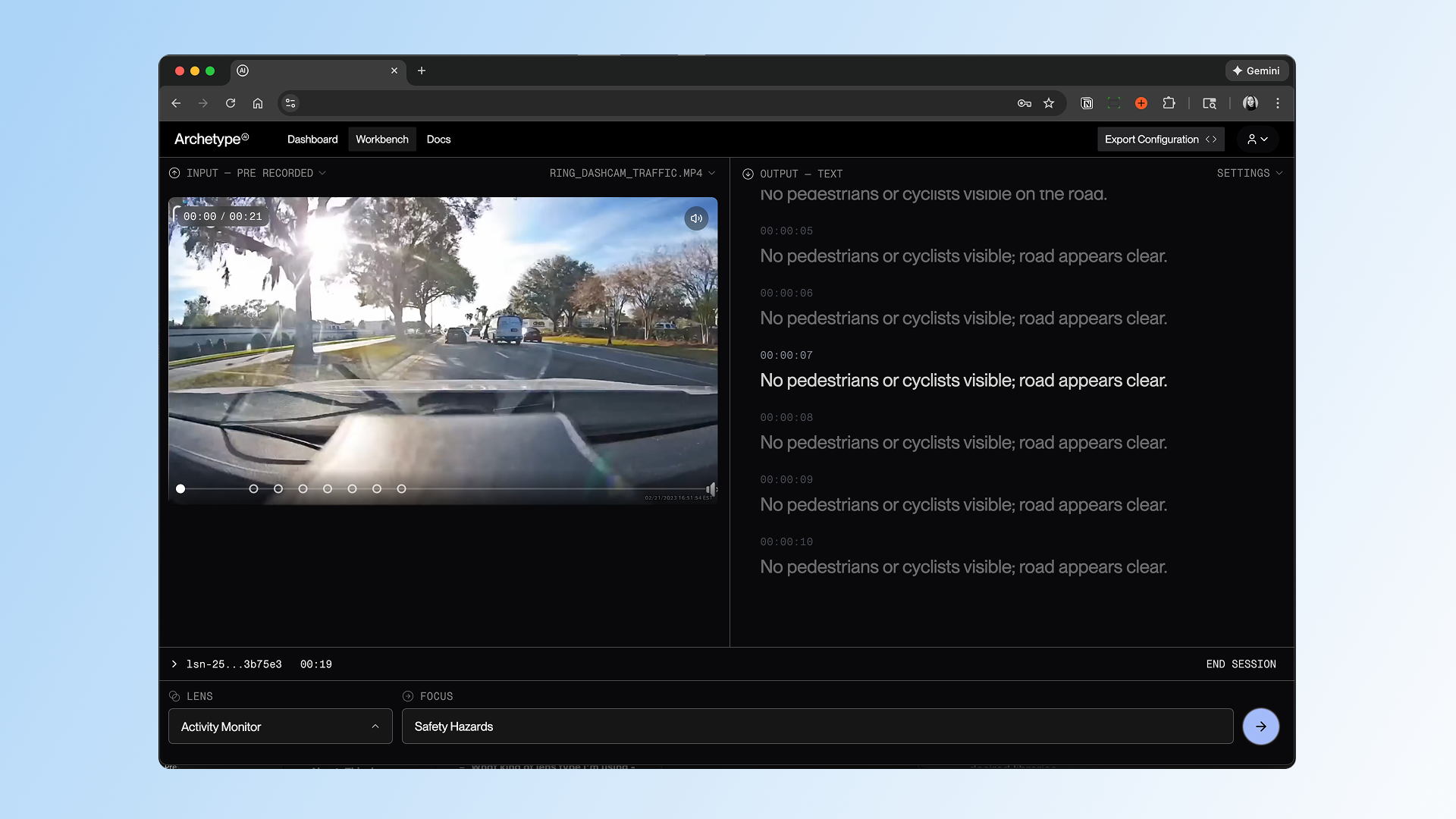
The Workbench is a no-code interface for testing Lenses with your own data. Using the workbench is easy for both developers and non-developers involves the following steps:- Select your lens
- Upload your own sample data (or try our sample files to get started quickly)
- Modify the lens parameters
- Run a Session & View the output
Lenses created programmatically (via Python
client or API) will automatically appear in your Developer Console, allowing you to monitor sessions, view results, and manage configurations from the interface. Learn more in the quickstart
guide.
2. Manage Resources
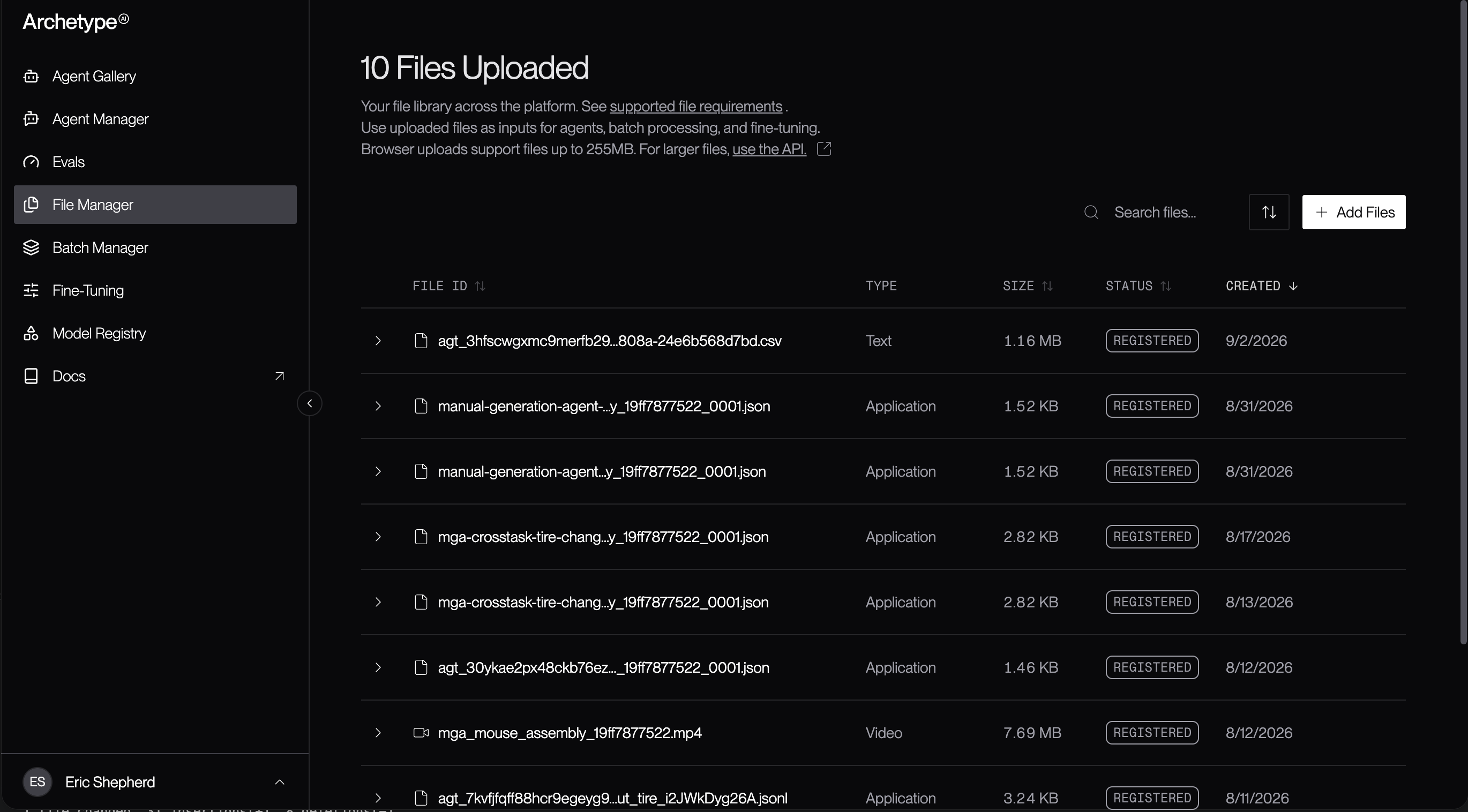
The console dashboard provides a File Manager to:- Upload files that can be accessed via API key
- View and delete files at any time
3. Monitor Lenses and Sessions
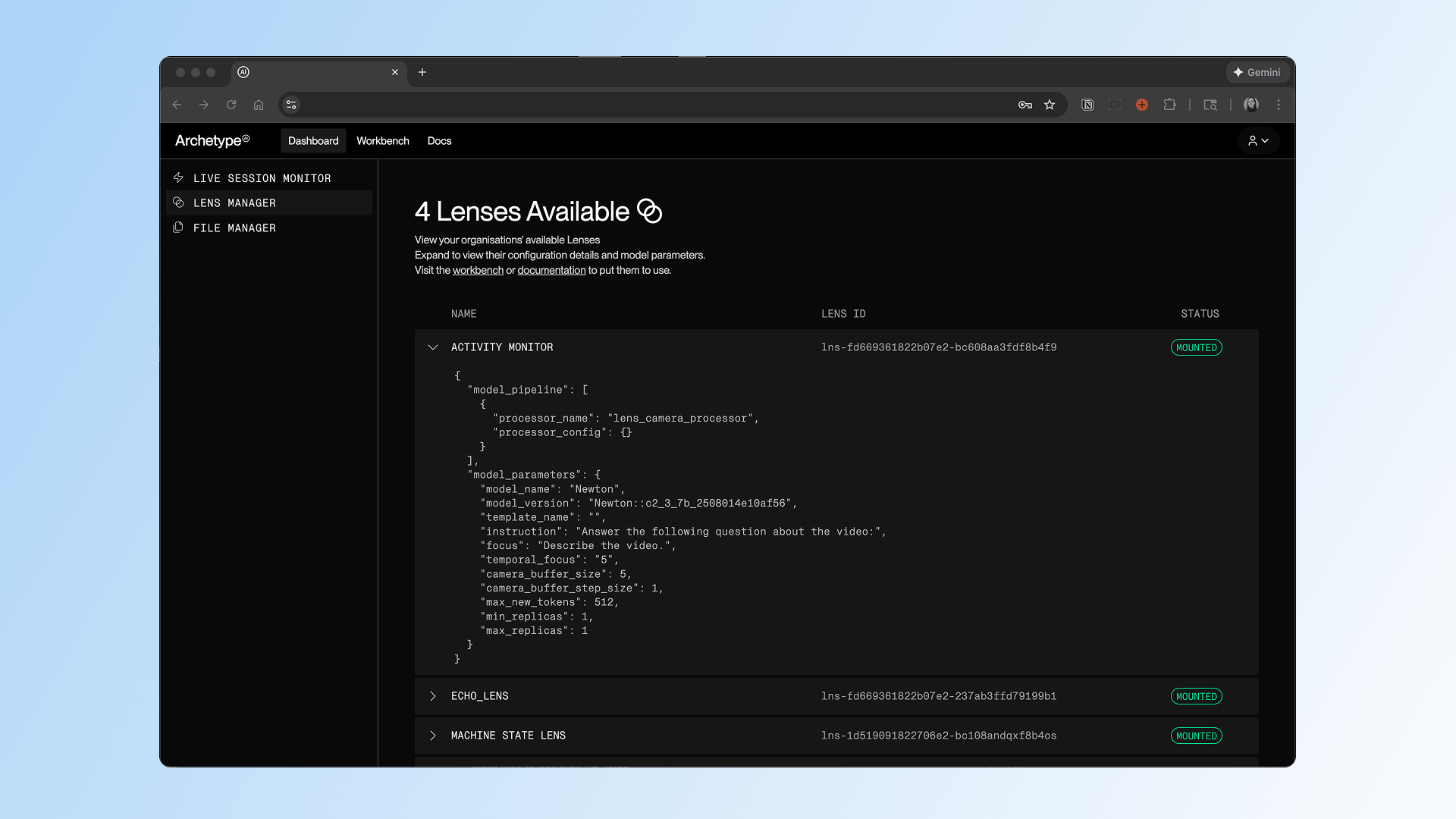
The console dashboard gives you visibility into the lenses and sessions that are running:- Lenses in use, including their lens ID and lens metadata
- Active sessions and their duration
4. Create and Manage Batch Processing jobs
The console dashboard includes the Batch Manager, which lets you create, manage, and monitor batch processing jobs. Batch processing lets you run a job against multiple files at once. Configure the job, select the files against which to run the job, and run the job. You can then watch the status of the job, or let the job run and check the results later.5. Explore Documentation
The console provides a link to the developer docs where you can:- Learn about core concepts of the Archetype platform
- Try the Quickstart and example tutorials
- View API references for integrating APIs into your prototypes and applications
Access Requirements
- Active Archetype platform API key - Sign in here
The Workbench is continuously evolving. New lens types and capabilities are added regularly based on user feedback and platform improvements.