

Set Up RTSP on Tapo C100 and access it over the Internet
This document explains how to set up your Tapo camera as an RTSP stream, accessible by Newton. It follows two steps: first, you set up the Tapo as an RTSP camera, and second, you make the RTSP accessible over the internet.1. Enable RTSP on Tapo C100 and access it locally
1
Install the Tapo app
Install the Tapo app on your smartphone (Tested on iOS)
2
Add your Tapo C100 camera
Add your Tapo C100 camera to the app following the Tapo instructions
3
Navigate to Camera Account Settings
Go to: Camera Settings → Advanced Settings (little gear on the top right) → Camera Account → Turn it on, and edit Account Information
4
Create an RTSP account
Create an RTSP account (username & password)
- This is different from your Tapo app account and will be used for RTSP authentication
- For example: username and password as
testingwithataiandtestingwithatai
5
Find the Camera IP address
Go to camera > Device Info > IP Address
RTSP Stream URLs
You should be able to see your RTSP stream (running locally) in these links:Testing the Stream
You can test it locally with VLC: Media → Open Network Stream → paste the RTSP URL or go to the browser and pass the link, it’ll redirect you to VLC.2. Make the RTSP Stream Accessible Over the Internet via Port Forwarding
Port Forwarding Setup
1
Access Router Admin Panel
Log in to your router’s admin panel (check Router Access Data on your router, it should look like this)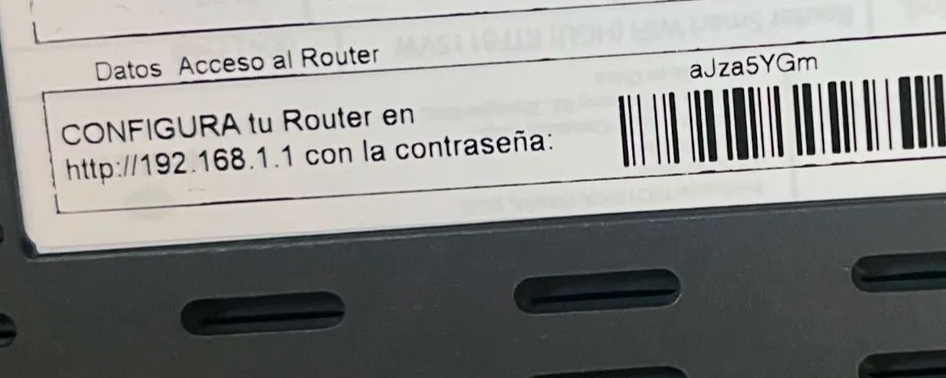
2
Navigate to Port Forwarding
Go to Port Forwarding / Virtual Server settings
3
Create Forwarding Rule
Forward TCP port 554 to the local IP of your camera (e.g.,
192.168.1.101)Example rule:- External Port: 554
- Internal Port: 554
- Internal IP: 192.168.1.101
- Protocol: TCP
4
Find Your Public IP
Find your public IP address (Google “what is my IP” or use whatismyip.com)
5
Test External Access
Access the stream externally using:
Example External URL
For example:Replace
79.158.9.105 with your actual public IP address, and use your actual RTSP credentials.