

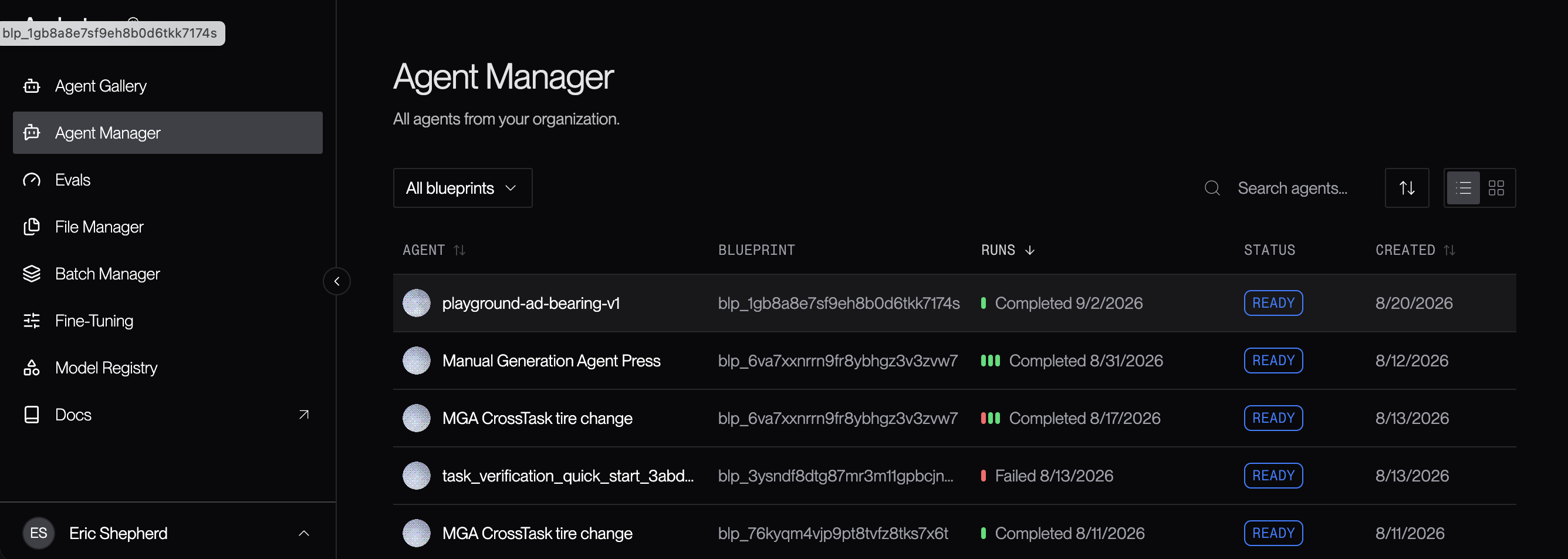
- Agent: The human-readable agent name specified when the agent was created.
- Blueprint: The agent blueprint on which the agent is based (such as Manual Generation,
Task Validation, or a custom blueprint’s ID starting with
bp_). - Runs: How long ago the last run was, or “No runs yet” if the agent hasn’t been run yet.
- Status: The status of the agent (
BUILDINGorREADY). - Created: The date on which the agent was created.
Running an Agent
To run an agent from the Developer Console, visit the Agent Manager and locate the agent you want to run. Click on it to open the agent: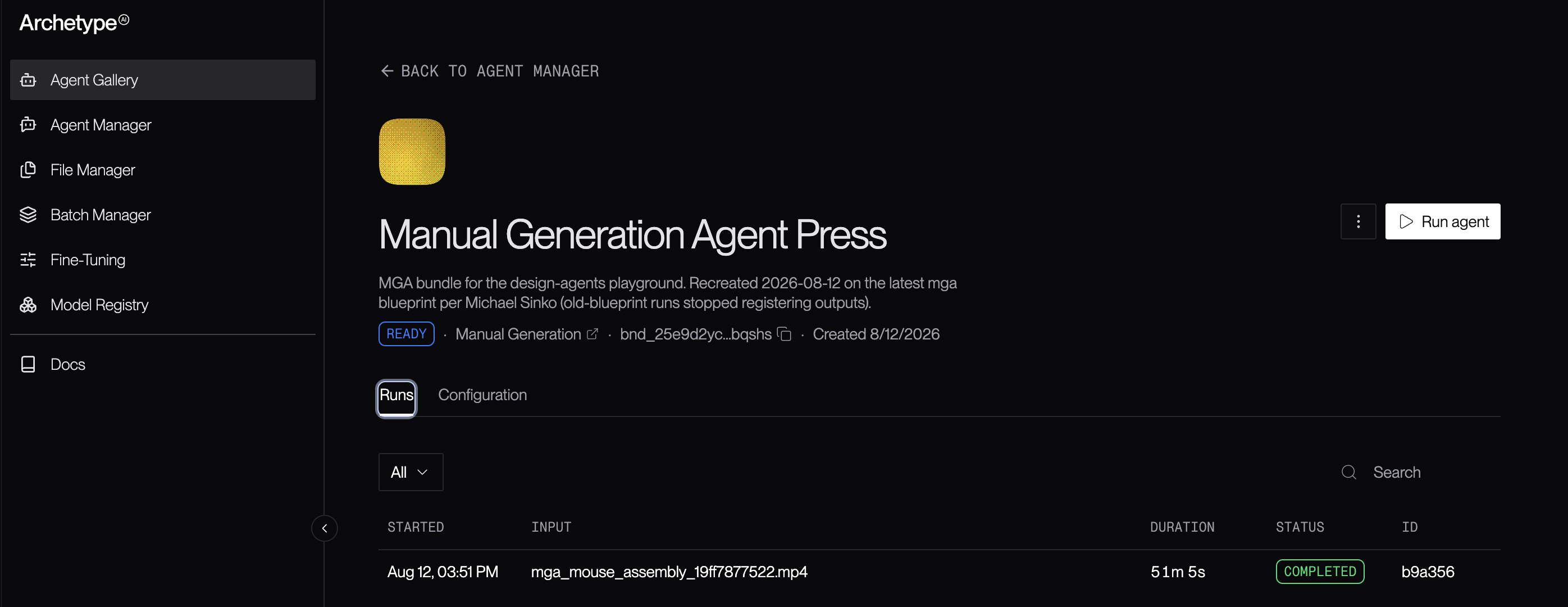
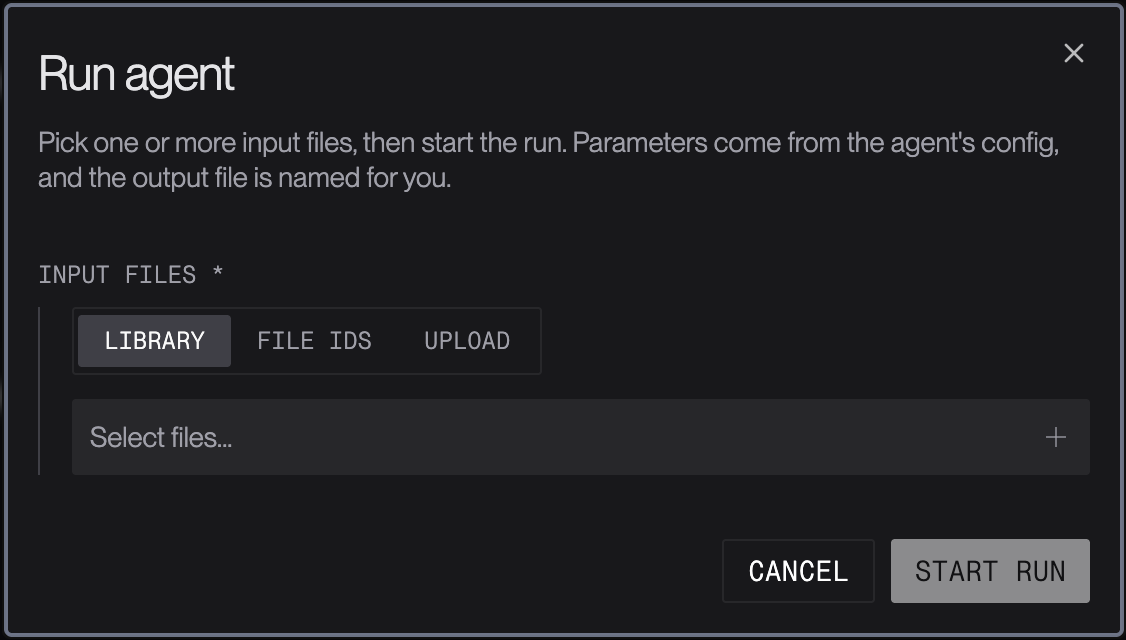
Monitoring and Managing Agent Runs
To monitor and manage agent runs, start by opening the agent page for the agent whose runs you want to manage.The Runs list
At the bottom, in the Runs tab, is a list of the runs of the agent that are available to manage.- When the agent run was started.
- The input file(s).
- The agent run’s duration; this is the total amount of time that run lasted for completed runs, and the time to date for ongoing agent runs.
- The agent run’s status.
- The agent run’s unique ID.
The Configuration
The Configuration tab displays the values of the parameters configured for the agent run, with separate listings for the parameters that are customized for this run of the agent and the parameters that are using the blueprint’s default values.Deleting an Agent
To delete an agent from the Developer Console, open the agent page and click the button to the left of the Run Agent button. This opens a popup which includes the Delete agent button.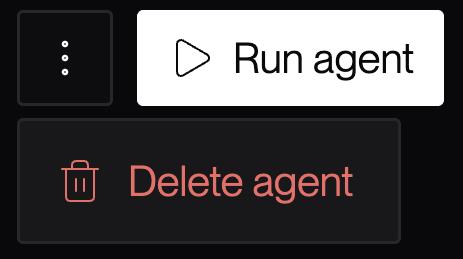
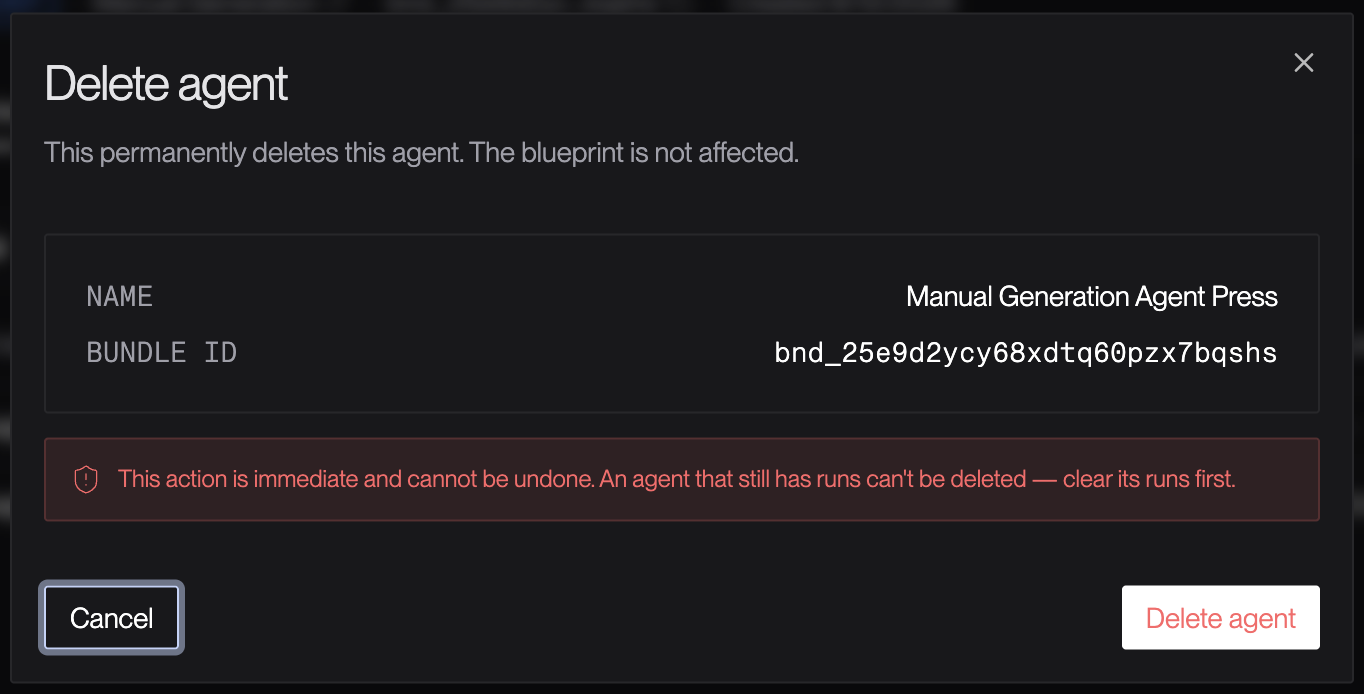
You can only delete agents that have no runs in progress. If your agent is running, cancel
all of its runs before deleting it.
Deleting an agent does not have any effect on the agent blueprint on which the agent is
based.
The Agent Run Details Page
The Run details page displays details about an agent run. For running agents, the page includes Pause and Cancel buttons: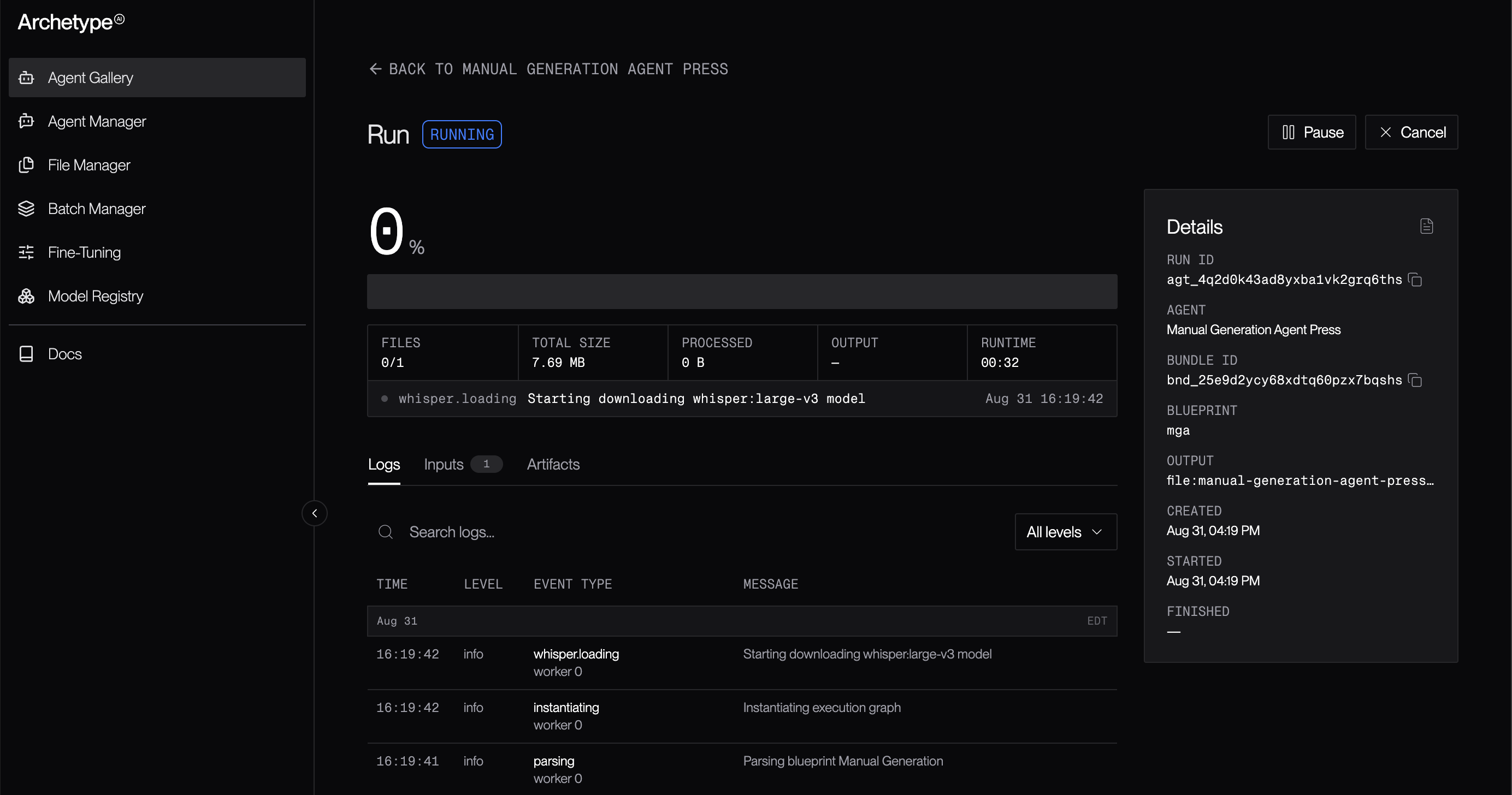
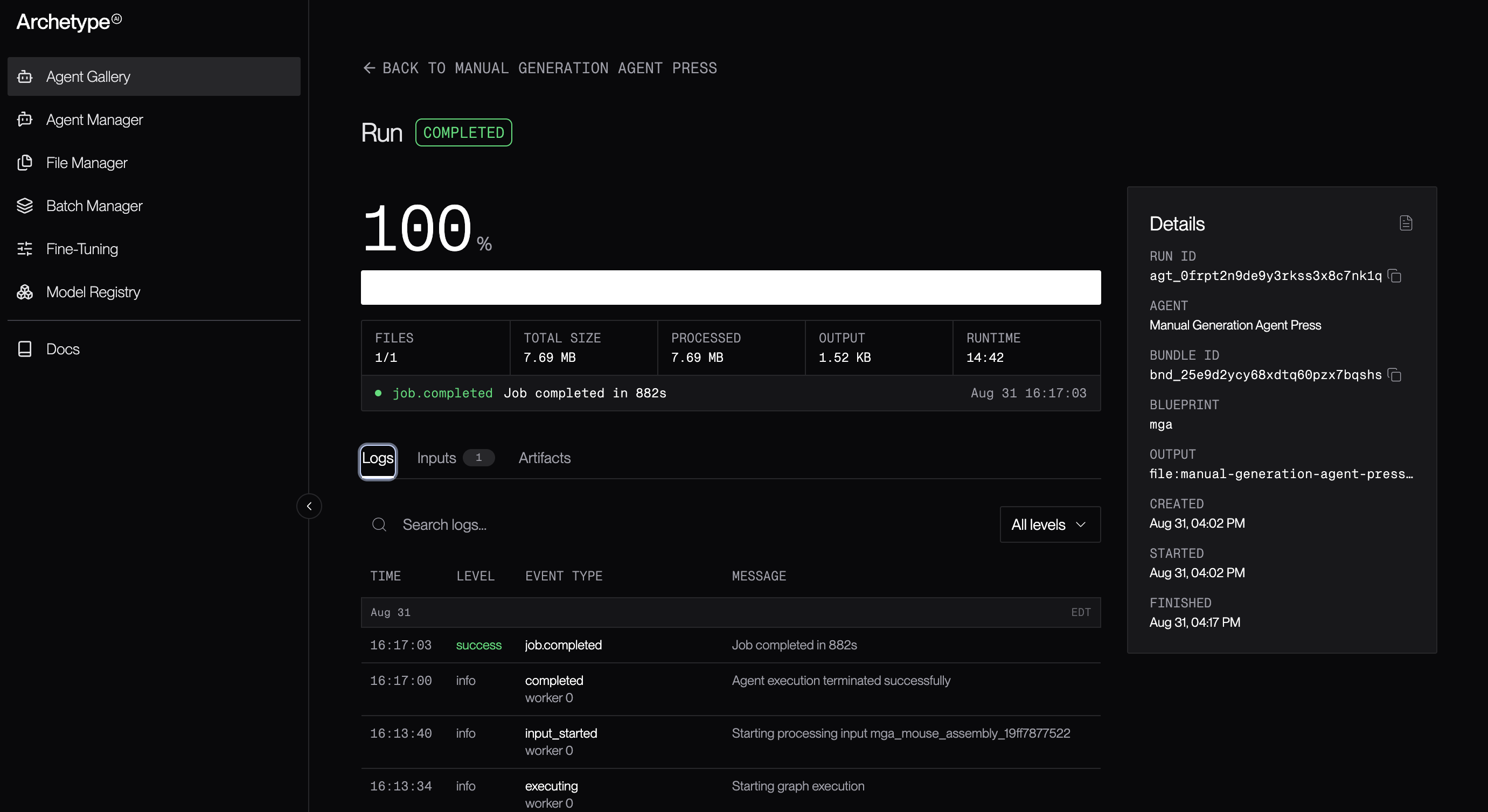
- The percentage of the agent run that has been completed, both numerically and as a progress bar.
- A box including the number of files to be processed, the total size in bytes of the data to be processed, how much data has already been processed, and the most recent log output line.
- A tab panel which lets you toggle between viewing:
- The agent run’s log entries.
- A list of the input files specified when the run was started.
- A list of the artifacts (output files) generated by the agent run.
- The run’s unique ID, starting with
agt_. - The agent’s name.
- The agent’s bundle ID, starting with
bnd_. - The agent blueprint on which the agent is based.
- The path of the output file.
- The date and time at which the agent run was created.
- The date and time at which the agent run was started.
- The date and time at which the agent run ended.